The desk: shelf, covers & appearance
Everything around the notebook — how journals are created, stored, presented, and dressed. The desk is deliberately quiet: a dark surface, a shelf of books, and a cover between you and the writing. This page walks the outside of the journal so the inside (the notebook itself) can have a page of its own. Most of these are one-click affordances; the value is knowing they exist before you need them.
The dashboard
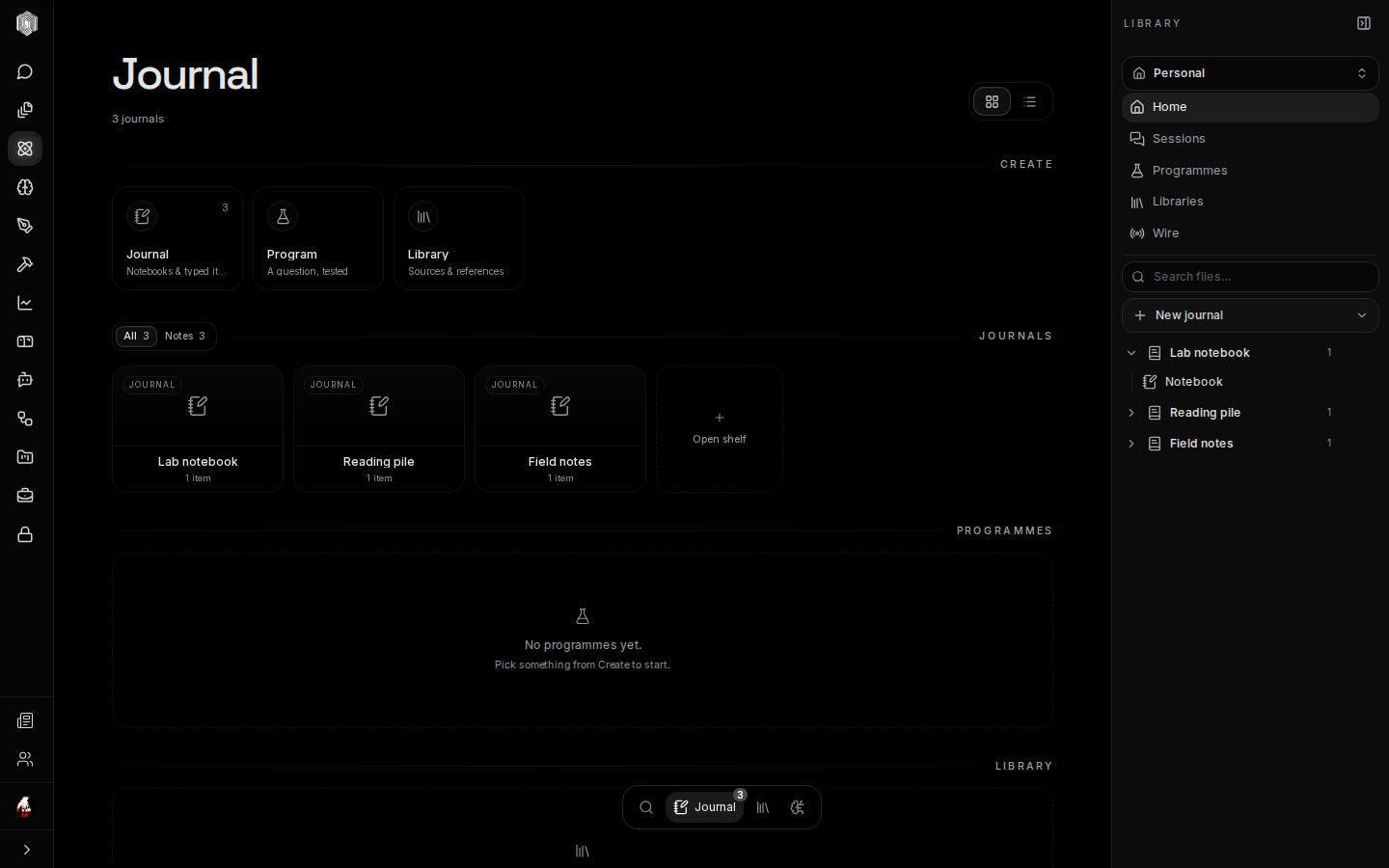
The dashboard is the Journal's home. Across the top sits a Create row with three tiles — Journal, Program, and Library — and below it, a rail for each collection: your journals, your programmes, and your libraries. Clicking a tile magnifies it in place and offers the action (New Journal, and so on) plus a jump to that collection's workspace, so creating and browsing are one gesture apart. Nothing here opens a dialog you have to escape from; the focus view simply slides over the rail you were reading.
When the desk gets crowded, the list view toggle in the header folds the three collection rails into one centred, tabbed list with filters — faster to scan once you own more than a screenful. Either way, clicking anything that is yours magnifies it with its details and its actions (Open, Delete for journals), so you can peek at what a journal contains without opening it. If the desk is empty, an honest empty state says so and points at Create.
Templates
Under the collections sits a Templates rail: a blank journal, a lab notebook with dated entries and a running sources page, a literature review laid out as question → key sources → synthesis with a LaTeX draft, and an experiment log with one page each for hypothesis, method, results, and discussion. Clicking a template magnifies it first, showing exactly which pages it would create — you see what is inside before it becomes yours.
Templates are starting points, not cages. A journal made from one is a normal journal: add pages, delete the ones you do not want, rename anything. If none of the shapes fit, the blank journal is genuinely blank — one empty notebook and no opinions. Templates only pre-title pages; they never pre-fill content, so nothing arrives pretending to be your work.
The shelf
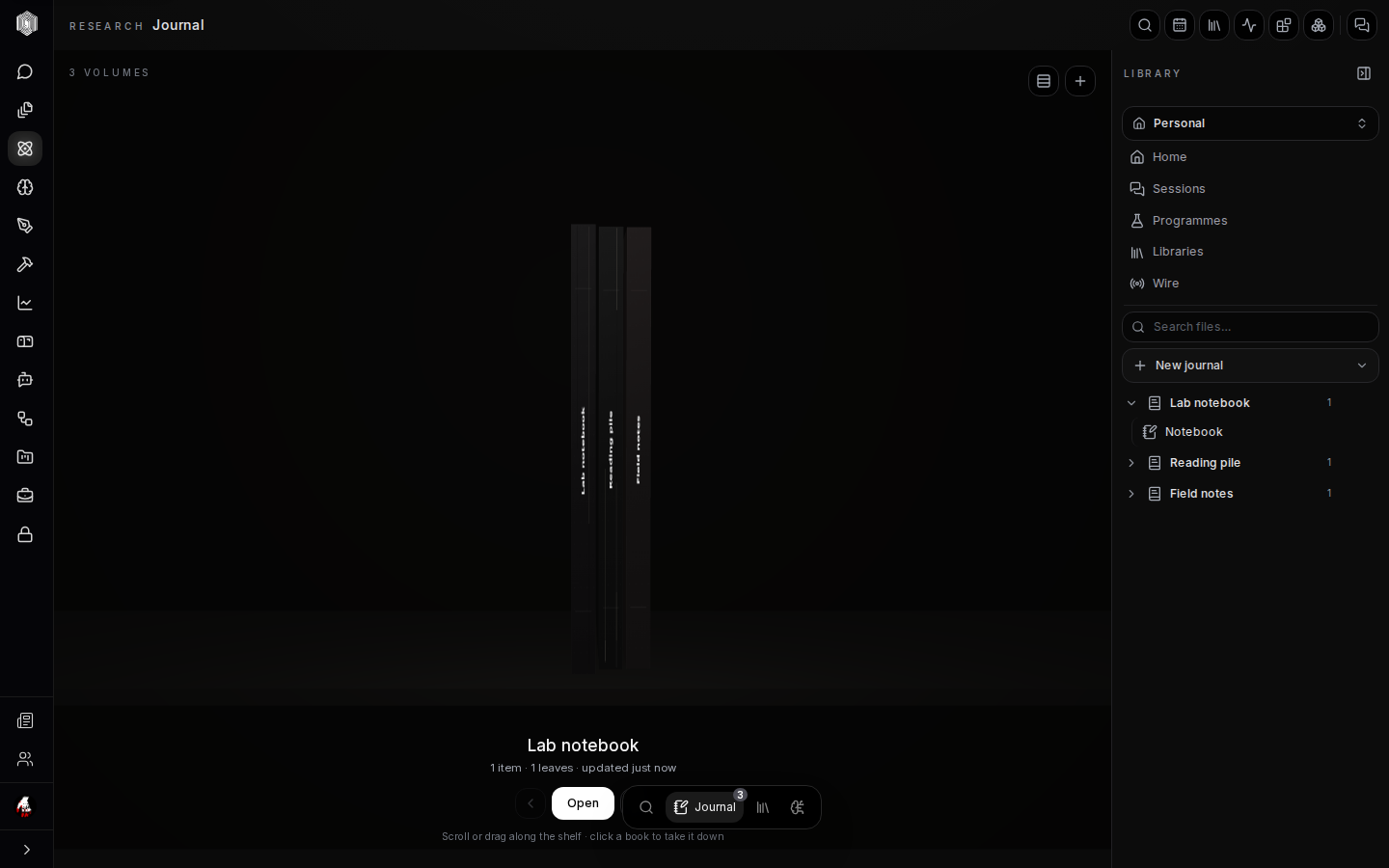
Leave a journal closed and the desk shows the shelf: your journals as cloth-bound books, standing spine-out. The shelf is a real reading of your library — a book's thickness is the amount of work in it, so a journal you have lived in for months is visibly fatter than yesterday's. Scrolling or dragging slides along the row; clicking a book takes it down and opens a panel beside the shelf with its cover and its contents, where any item can be opened directly.
If your machine cannot render the 3D scene, the shelf falls back to a plain list that can do everything the scene can — browse, inspect, open — so no one gets a dead end. The list is not a degraded afterthought; it is the same shelf, drawn with less geometry. On phones the shelf presents itself accordingly, and the rail remains the fastest way to jump between journals.
The cover
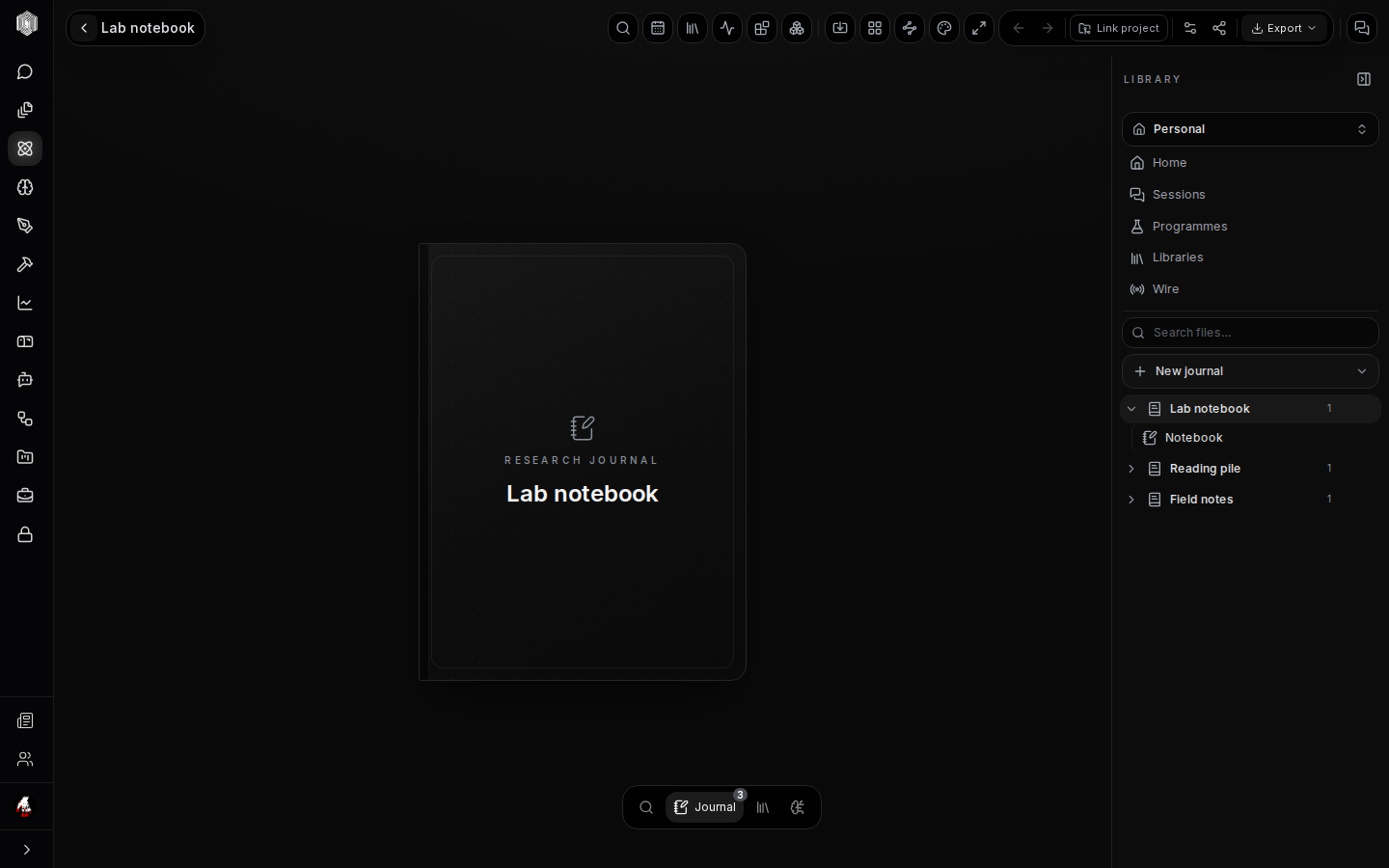
Opening a journal lands on its cover — a book cover carrying the title, subtitle, author line, and date label you set in Settings. The back arrow in the header always returns here first, which keeps the notebook one step away instead of zero: covers give a journal a threshold, the same way closing a paper notebook does. Clicking the cover (or any item from the shelf panel) opens the first page.
Covers matter most when a journal is shared or when you return to it months later — the subtitle and date turn "Untitled Journal" into something a future you can identify at a glance. They are cheap to set and cheaper to keep updated: open Settings, type, done.
Journal settings
The gear icon in a journal's header opens Settings, and it is worth a slow first visit. The title field renames the journal everywhere at once — cover, shelf, rail, search. The cover fields (subtitle, author, date) feed the cover described above. A live preview on the left of the dialog shows the cover as you type, so the title length that fits is not a guess.
The same dialog carries the journal's PIN protection. A 6-digit PIN encrypts a Personal journal's pages with a key only your PIN can make (PINs are not available on journals in a space). If you forget the PIN, the pages cannot be recovered. After you unlock it, the key is kept on this device for the window you choose — 1, 6 or 24 hours — and the next time the journal opens after that, it is locked again. Removing the PIN (which requires knowing it) decrypts the journal for good. Deletion also lives here, behind its own confirm, because a journal and everything in it is one decision you do not want to make by accident.
Themes
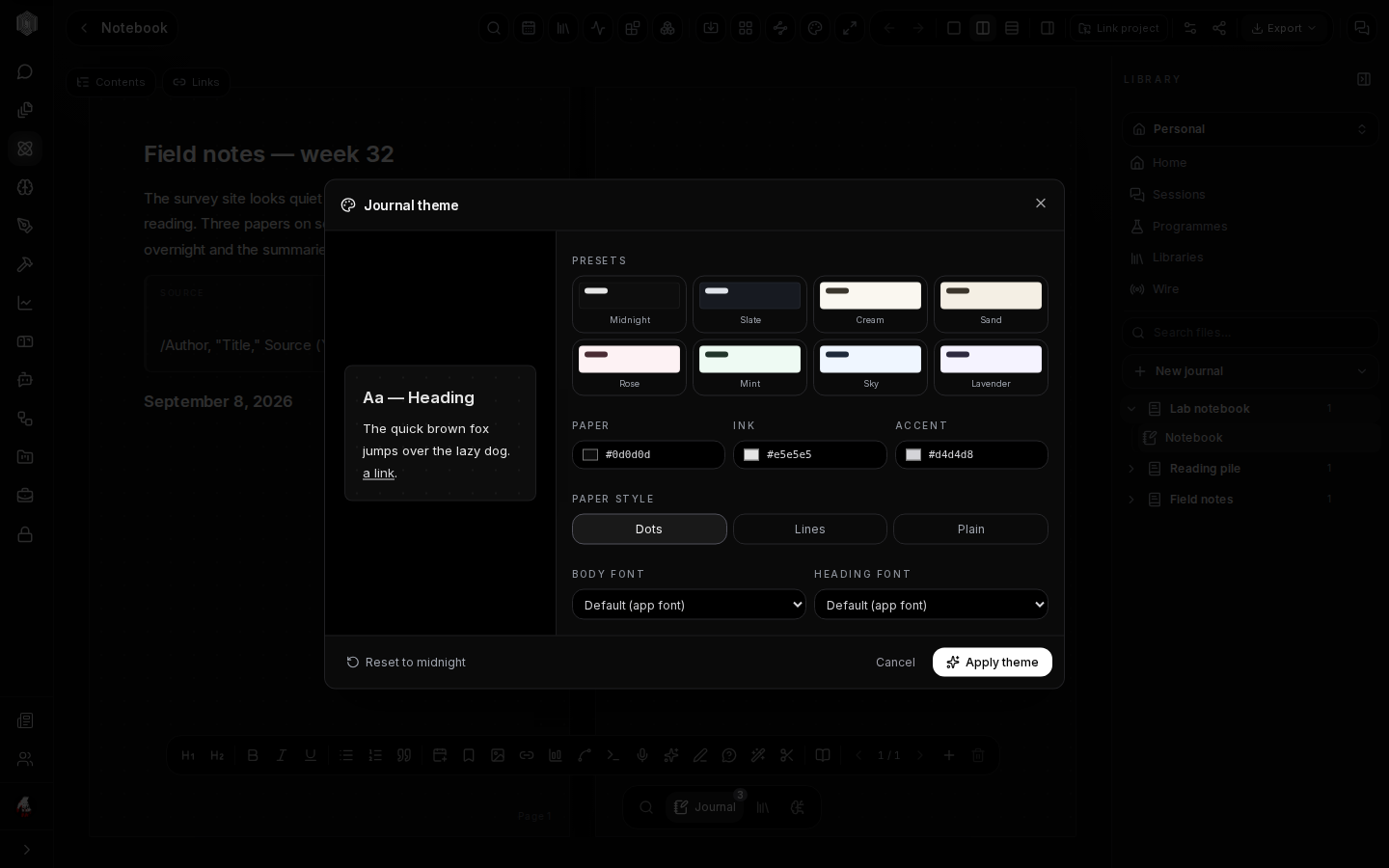
Every journal can be dressed independently. The palette icon in the journal header opens the theme dialog: eight presets from Midnight (the app's own black) through Cream, Sand, Rose, Mint, Sky, and Lavender — the light papers reading like real stationery — plus Slate for a cooler dark. Beyond presets you can set the paper colour, ink colour, and accent directly, choose dots, lines, or plain paper texture, and pick body and heading fonts, with a live preview page rendering your choices as you make them.
A theme belongs to the journal, not to you: one notebook can be cream and its sibling midnight, which is a quiet way of telling project apart at a glance on the shelf, since a book's cloth takes its hue from its theme. Reset to midnight restores the default in one click, and Cancel discards an experiment entirely — theme changes only apply when you press Apply.
Focus mode
The expand icon in the journal header enters focus mode: every piece of chrome — header, rail, dock, assistant — disappears, the page goes full-screen, and you are left with the paper. Writing that needs an hour rather than a minute is easier when nothing on screen can be clicked by accident. An unobtrusive Exit focus button sits in the corner (it fades to near-invisible until hovered), and Esc leaves focus the same way.
Focus mode is per-session, not a setting you manage: leaving it restores exactly the layout you had, with the same page open. If you use the notebook on a laptop without a mouse, this plus the keyboard shortcuts is the fastest writing loop on the desk.
The right rail
The rail on the right is the desk's index. It lists your spaces (Personal by default), the workspace jumps — Home, Sessions, Programmes, Libraries, Wire — then a file search that spans everything on the desk, and finally your journals with their items nested beneath them, each journal's items one click away. The New journal button at the rail's waist creates without returning to the dashboard.
If you work inside an organisation, the rail pins itself to the org's library and your personal journals fold under a disclosure at the bottom, so work and personal research stay separated without any switching ceremony. On a phone the rail becomes a slide-over drawer — the hamburger button in the journal header opens it, choosing a destination closes it, and Esc closes it too.