Charts, PDFs & notes
Three formats that feed the others: charts turn numbers into pictures worth putting in a doc or deck; Publications are PDFs — annotated, stamped, and re-assembled into new documents; notes are the sticky wall for thought too quick to file. They are the desk's support cast, and each removes a detour you would otherwise make with a screenshot tool or a marker pen.
Charts
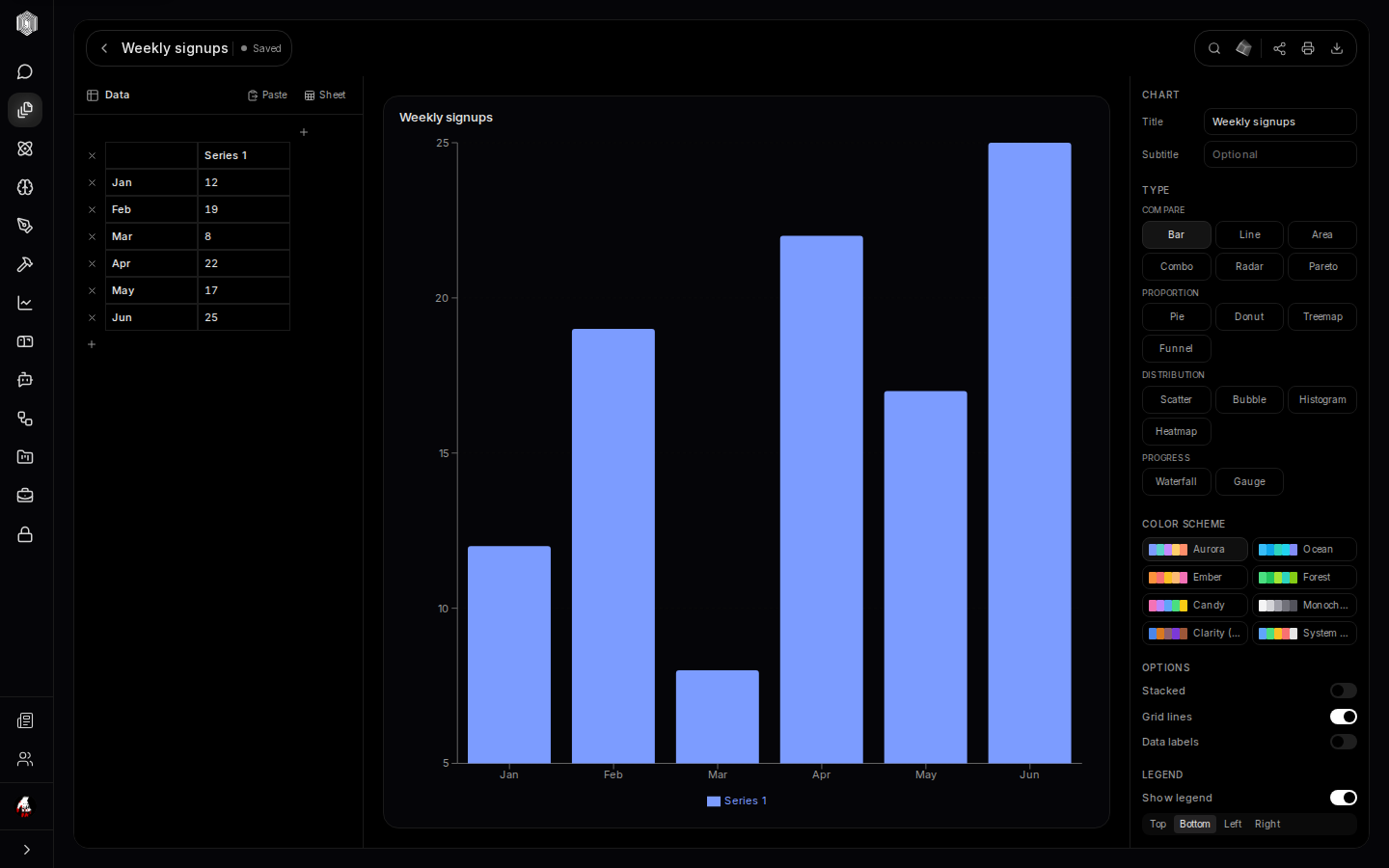
A chart starts as a small table you type or paste: categories down the side, series across the top. The editor renders it live as you edit, and the right panel is the whole charting vocabulary: compare types (bar, line, area, combo, radar, Pareto), proportion types (pie, donut, treemap, funnel), distribution types (scatter, bubble, histogram, heatmap), and progress types (waterfall, gauge). Below the types: colour schemes with names like Aurora and Monochrome, toggles for grid lines, data labels, stacking, and the legend's position. Change any of it and the chart re-renders instantly.
Charts pull data three ways: the built-in grid, Paste (a table from anywhere parses into cells), or Sheet — linking to a spreadsheet so the chart redraws when the numbers move. That last one is the habit worth building: the quarterly deck's charts should be linked to the quarterly sheet, so next quarter is an edit and not a rebuild. Charts export as images, which is what makes them citizens of the other formats — drop one into a document, a slide, or a whiteboard.
Chart boards
A chart board arranges several charts on one surface — a dashboard for a topic. The intended loop is simple: build the charts individually in the Charts tab, then add them to a board and arrange them; the board keeps them together, so a team's growth numbers, funnel, and retention live on one screen instead of three tabs.
One honesty note: chart-board creation is currently flaky server-side — clicking New on the Chart Boards tab can fail while the rest of the desk works. If a board will not create, the charts themselves are unaffected, and the empty state above is the tab you will see. This is a known rough edge being fixed; the section is documented here because the boards around it (described above) are solid.
Publications — PDFs with a workshop
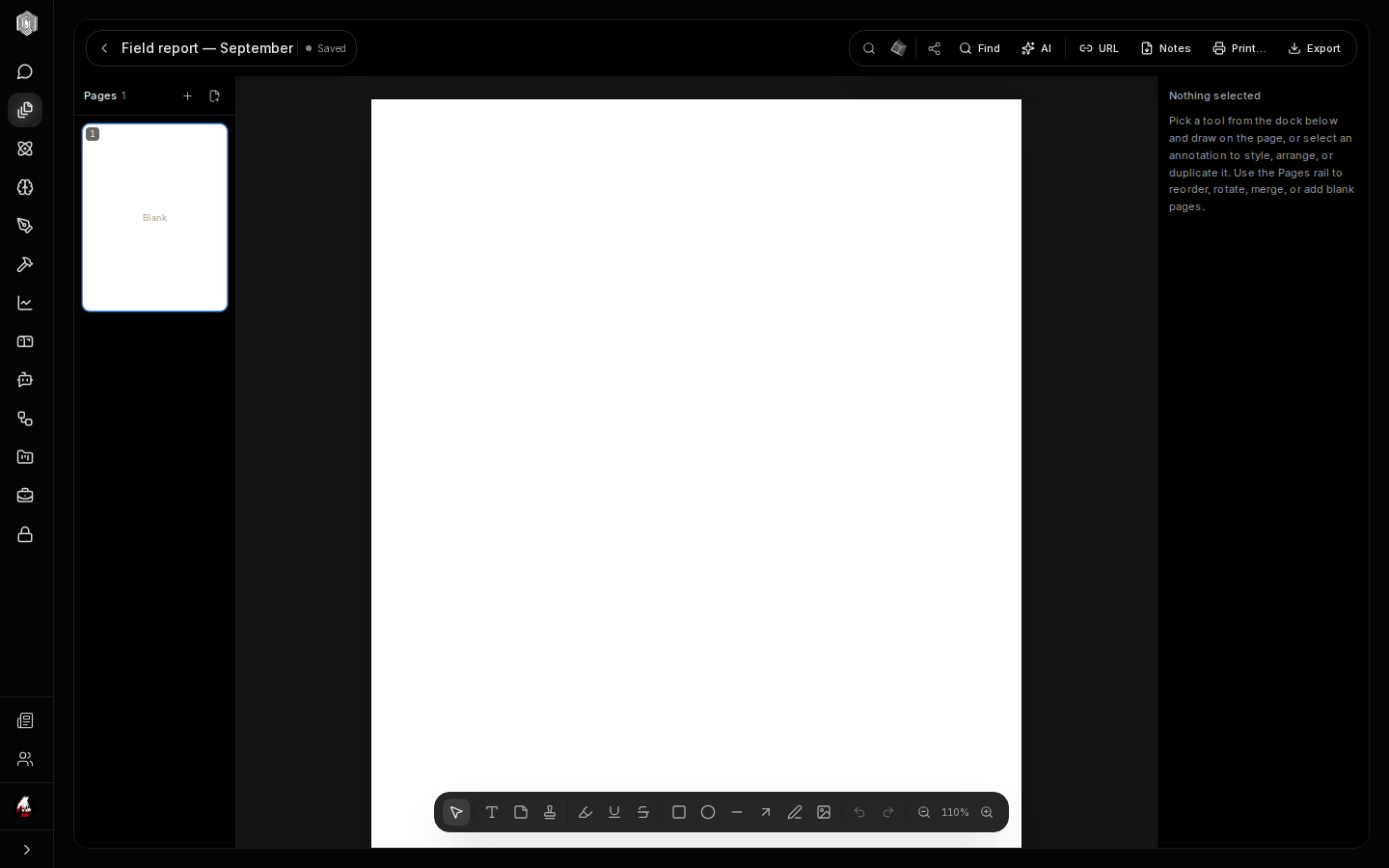
Publications is where PDFs get worked on rather than just read. Open one and the editor shows pages down the left rail — add blank pages, duplicate, reorder, rotate, merge, or delete, assembling a new document out of old parts. The dock along the bottom is the annotation set: select, text, copy, stamp, highlight, underline, strikethrough, rectangle, ellipse, line, arrow, and pen — with a right panel that styles whatever is selected. Find searches the text, and AI assists with reading.
Two doors bring work in: import opens a PDF from your files, and the URL button fetches one from the web. Everything you mark up saves with the document, and Print sends the assembled result onward. The editor also hosts Print Studio — the print target for the rest of Office — so a spreadsheet page, a document, and an annotated PDF can become one polished handout.
Notes — the sticky wall
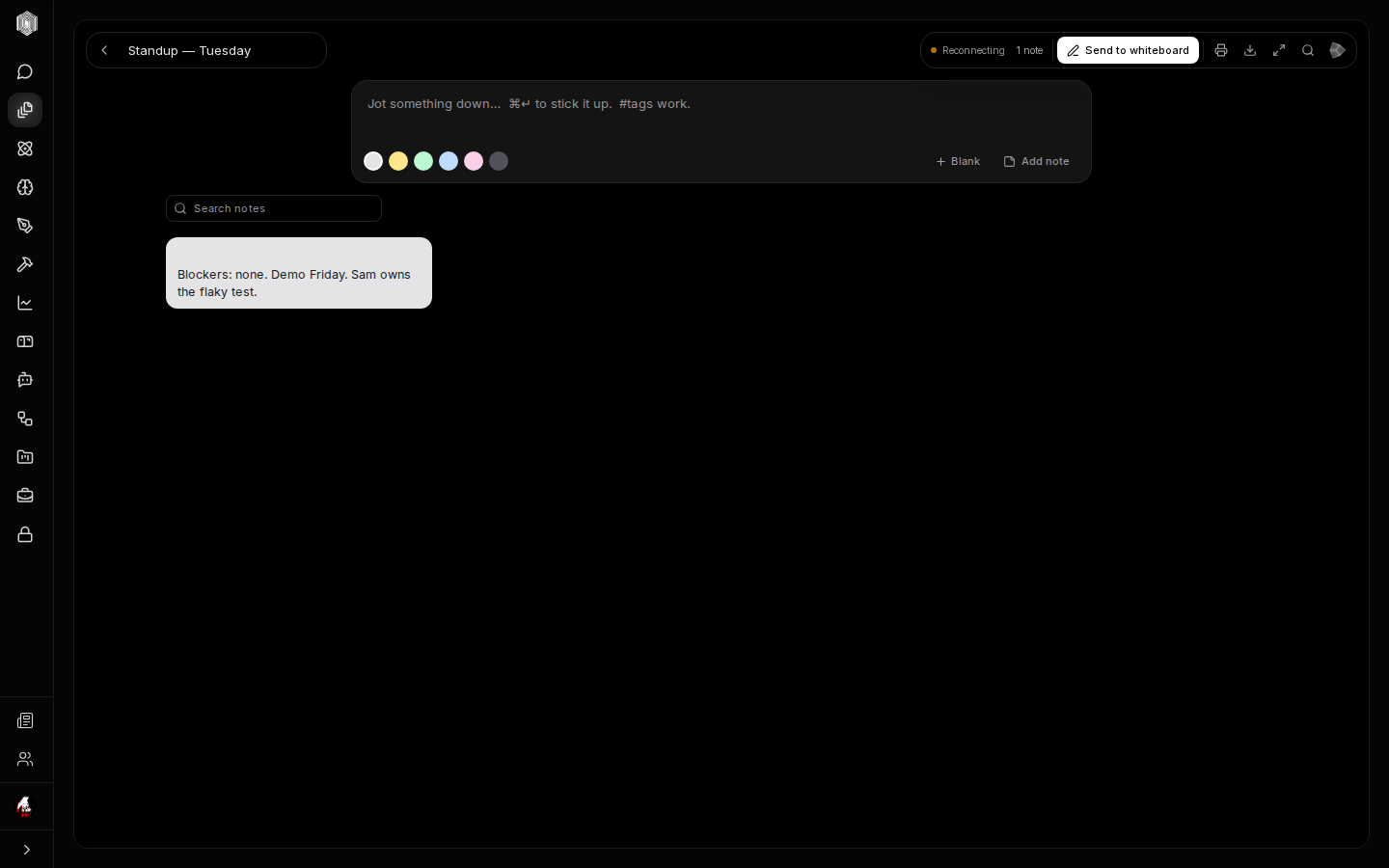
Notes are deliberately beneath the dignity of a document: click the composer, type the thought, ⌘Enter, and it is a sticky on the wall. #tags organise the wall (the search box filters by them), six colour dots give the eye something to group by, and a note is edited by clicking it — nothing more ceremonial ever interrupts. The wall searches as it fills, so a year of stickies stays one query away.
The wall's exit ramp is Send to whiteboard: a sticky (or the whole wall) pushed onto a whiteboard canvas, where it becomes movable, groupable, and drawable-around. That is the intended life cycle — capture on the wall during the day, then promote the stickies worth keeping to a whiteboard when the thinking starts, and to a document when it ends. Notes are saved to your account as you type; the header chip shows the live connection, and other people's changes appear as they happen while you are both connected.