Spreadsheets & slides
The two formats that present: the grid for numbers that have to add up, the deck for ideas that have to land. Both are real editors — formulas that compute, multiple sheets, decks that present full-screen with speaker notes — and both hand off to the rest of Office when a chart or a printout is the next step.
The spreadsheet grid
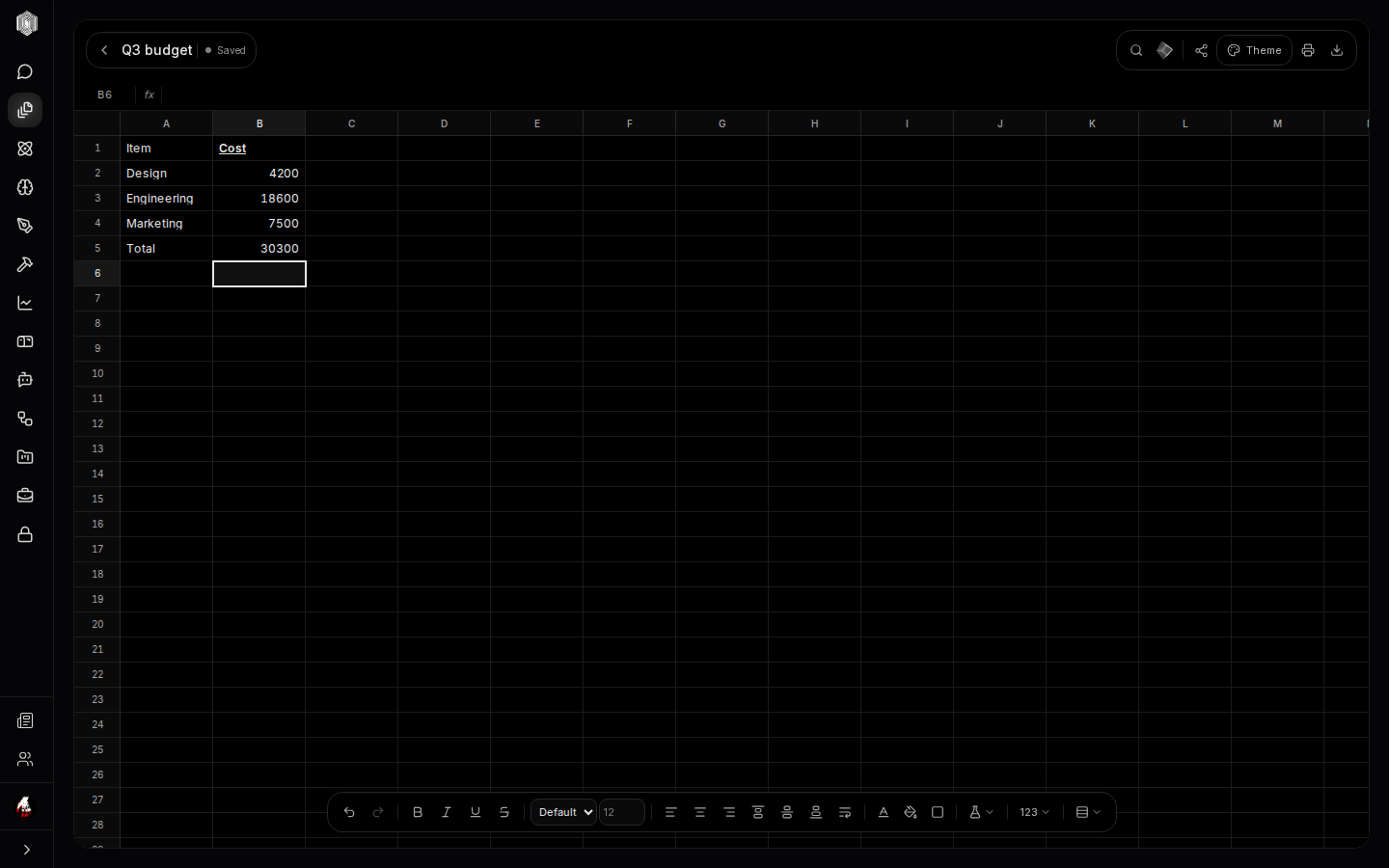
The spreadsheet will feel immediate: click a cell, type, and the value lands. The formula
bar along the top shows (and edits) the active cell's real contents — type =SUM(B2:B4)
into a cell and the total computes, live, and recomputes as the inputs change. Cells are
addressed the usual way (letters for columns, numbers for rows), the name box in the corner
jumps to any address, and arrow keys, Tab, and Enter move the selection the way your hands
expect.
Formatting is on the bottom dock: bold, italic, underline, strikethrough, text colour, alignment, number formats (currency, percent, the works), and conditional formatting — rules that colour cells by their values, so a budget line that goes over turns red on its own. Columns and rows resize, and the grid scrolls by the screenful.
Sheets, formulas & export
A spreadsheet file holds multiple sheets — the tabs along the bottom — so one file can be a whole workbook: a budget per quarter, a raw data sheet feeding a summary sheet. Formulas reference other sheets, and the summary recomputes when the raw numbers move. Paste is a first-class citizen: paste a table from anywhere and the grid parses it into cells rather than dumping one giant string.
The header's export writes a genuine .xlsx file that Excel and Google Sheets open
without complaint — formulas included. And the print button sends the sheet to Print
Studio, the Publications editor (page five), where the grid becomes a page you can
annotate and assemble with other pages into a single PDF.
Building a deck
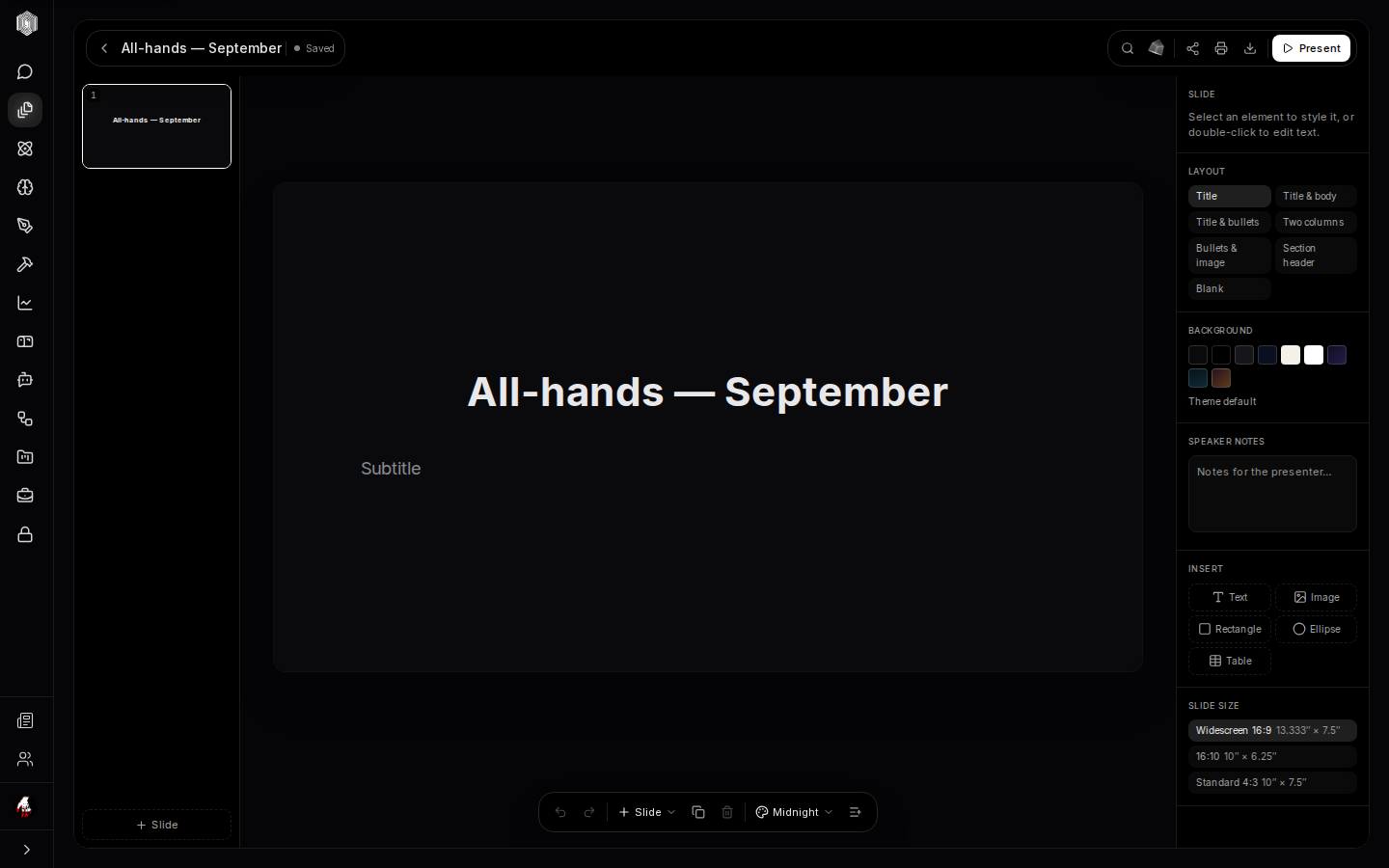
The deck editor shows a filmstrip of slides on the left, the current slide in the middle, and the slide panel on the right. Double-click any text to edit it. The panel's layouts give each slide its skeleton — title, title and body, title and bullets, two columns, bullets with image, section header, or blank — and switching a layout re-flows the slide's placeholders without losing your text. Background sets a colour per slide, and insert adds text boxes, images, rectangles, ellipses, and tables.
Speaker notes live under the panel: notes for the presenter that never appear on the projected slide. Slide size switches the deck between widescreen 16:9, 16:10, and standard 4:3 — worth deciding before rather than after, because it re-flows everything. The deck theme (Midnight by default) dresses every slide at once, and + Slide grows the filmstrip; slides can be duplicated and reordered from the same dock.
Presenting
The Present button goes full-screen from the current slide: advance slide by slide, Esc to leave, and the speaker notes stay in the editor for your second screen — the audience sees the slide, your notes remain beside the deck. Because the deck lives in the same account as everything else, the morning-of workflow is short: update the numbers in the spreadsheet, chart them (page five covers charts), and present from the same window.
The deck's export writes a genuine .pptx file — PowerPoint opens it with layouts,
text, and backgrounds intact — which is the hand-off for anyone presenting from a machine
that has never heard of this desk. Between the live Present mode and the PowerPoint export,
a deck reaches any room: on the platform, on a projector, or on someone else's laptop.