Film & the editor
Two rooms for motion. Film composes short AI video: describe the film, and it becomes a sequence of shots you can regenerate, reorder, and refine. The Editor is the finishing bench for anything that already exists — footage from Film, a video from your device, or a photograph — with effects, scopes, music, and export. One makes the material; the other makes it right.
Composing a film
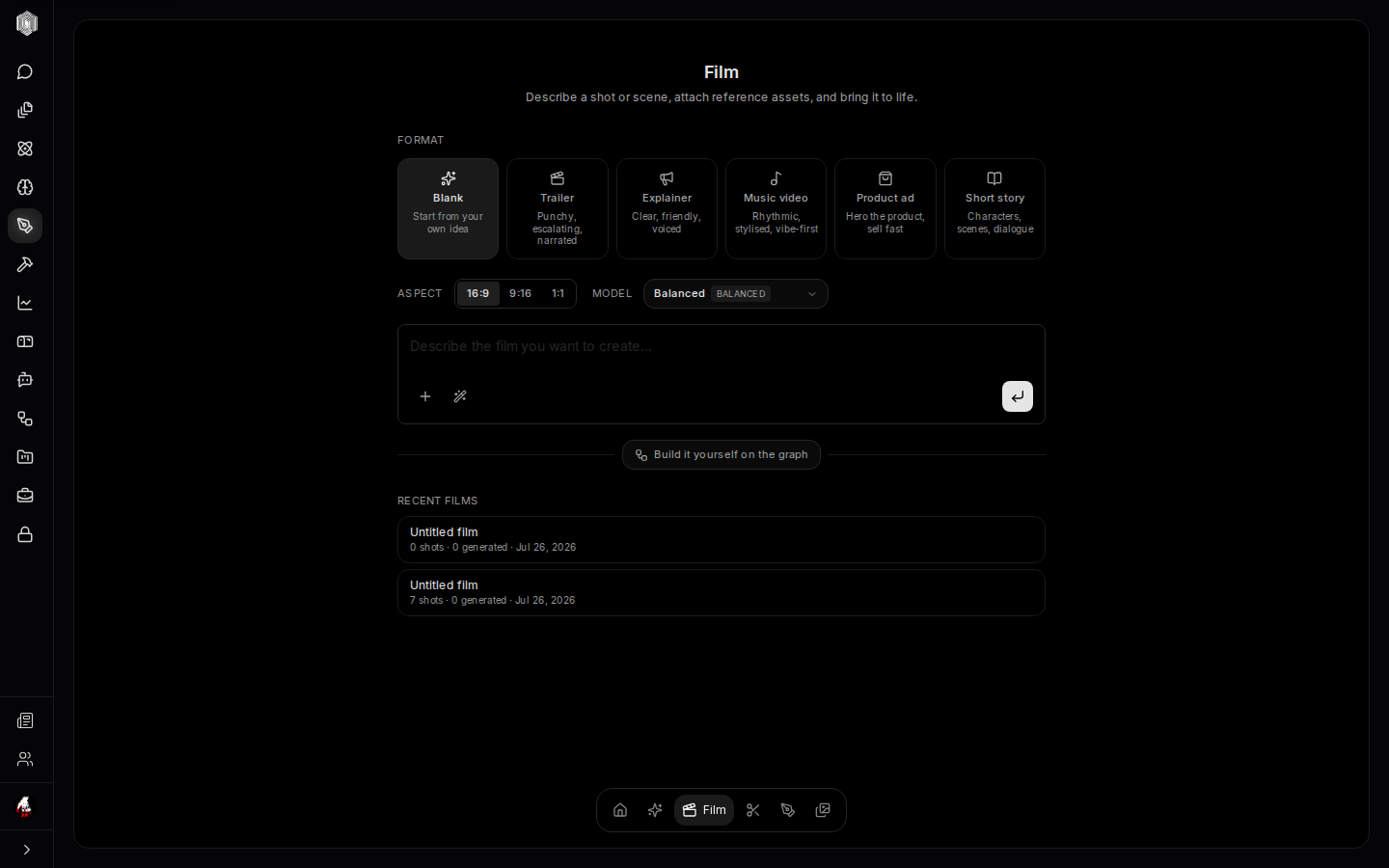
Film starts with a description — "Describe the film you want to create…" — and a format that shapes everything downstream: Blank for your own idea, Trailer for punchy and escalating, Explainer for clear and friendly narration, Music video for rhythmic cuts, Product ad to hand the product and sell it fast, Short story for characters and dialogue. Pick the aspect (16:9, 9:16, or square) and the model, attach reference assets if the film should feature something specific, and submit.
What comes back is not a video — it is a plan: the film broken into shots, each with its own description, that you can edit, regenerate individually, reorder, or delete before any expensive rendering happens. The clarifying step may ask questions first, because a thirty-second film with six unclear shots costs far more than one round of answers. If you would rather steer by hand, Build it yourself on the graph opens the shot graph and you compose the sequence yourself.
The film studio and the library
Once shots look right, the film moves into the studio phase, where each shot renders and the timeline assembles. Recent films are listed on the compose surface with their shot counts — "7 shots · 0 generated" is an honest status, not a stutter — and every session is kept: open an old film, and it resumes where it left off, shots and all. Finished films are downloadable as video files and land in the Library, and cuts sync to your account.
The film's reference assets come from anywhere — an Imagine still as the visual anchor, a Draw storyboard for composition — which is why the tabs hand off to each other. A brand reaches a film through its reference images: an image you generate in the Imagine panel with a brand applied carries that brand onto the shot it anchors.
The editor: video
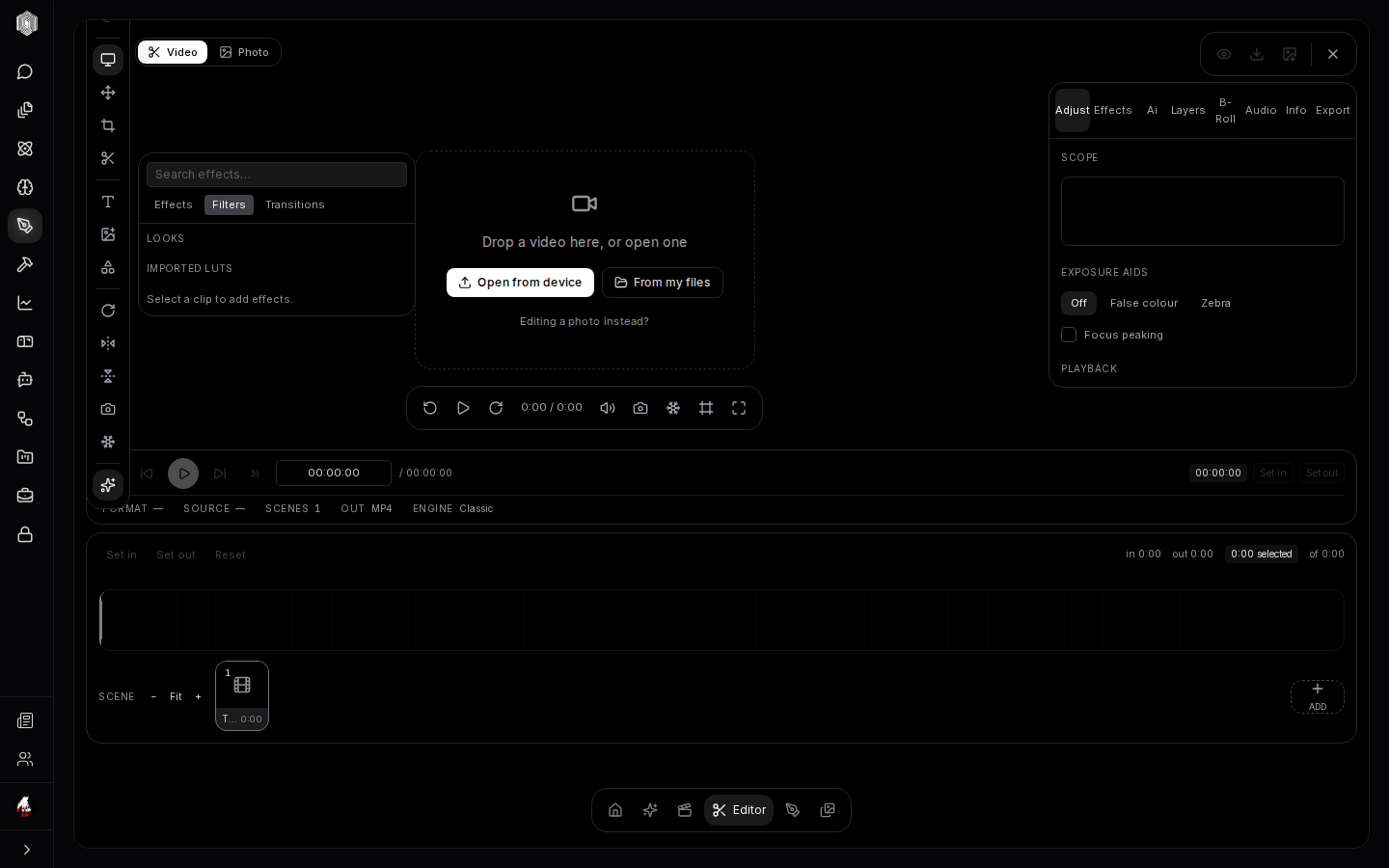
The Editor opens with two tabs — Video and Photo — and the video side accepts footage two ways: drop it in, or open from your device or from your files. The left panel holds the look: Effects, Filters, and Transitions, searchable, with imported LUTs welcome — a look graded elsewhere can travel here intact. The right rail is the control room: Adjust for exposure and colour, Effects, an AI tab, Layers for compositing, B-Roll and Audio for the tracks around the picture, Info, and Export.
The professional instruments are there when wanted: a scope for reading the image honestly, and exposure aids — false colour, zebra stripes, focus peaking — that show exposure and focus rather than asking you to trust a small preview. The timeline below carries in and out points (Set in / Set out), a scene strip with add-and-fit controls, and a status row that names the format, source, scene count, and output container.
The editor: photo, and getting work out
The Photo tab is the same bench for stills: crop and straighten, adjust, filter, and export — the place an Imagine result gets its final polish before it ships. Both editors export honestly: video out as an MP4 build, photos as images, at the quality you choose, with the export panel showing what will actually be written.
The intended loop is short. Film composes the material; the Editor finishes it; a photo or frame lands back in the Library with its origin attached, one click from a project or a download. Nothing in the chain requires a second application — and when the work does leave, the exports are the formats the rest of the world already speaks.