The desk: dashboard, graph & sharing
The connective tissue: the dashboard that creates and surveys everything, the knowledge graph that maps it, folders that file it, and the sharing controls that decide who else can see a document. None of it is mandatory on day one — but at ten documents the dashboard starts earning its keep, and at a hundred the graph shows you things the file lists never will.
The dashboard
The dashboard is Office's home: an aggregate row (files, formats in use, last edit), the create row of ten tiles, a My Work rail of everything recent with type filters, and a Templates rail. Clicking a tile or a template magnifies it — the same focus interaction as the rest of the platform — and acts from there, so browsing and creating are one gesture apart. A grid/list toggle switches the whole layout between tiles and a compact table when the desk grows past what tiles show well.
The type filters deserve a note: they count as they narrow (Docs 22 · Boards 7 · …), which makes them a survey of your own habits. Clicking a type is also the fastest way to a blank of that format without going through the gallery at all.
Templates
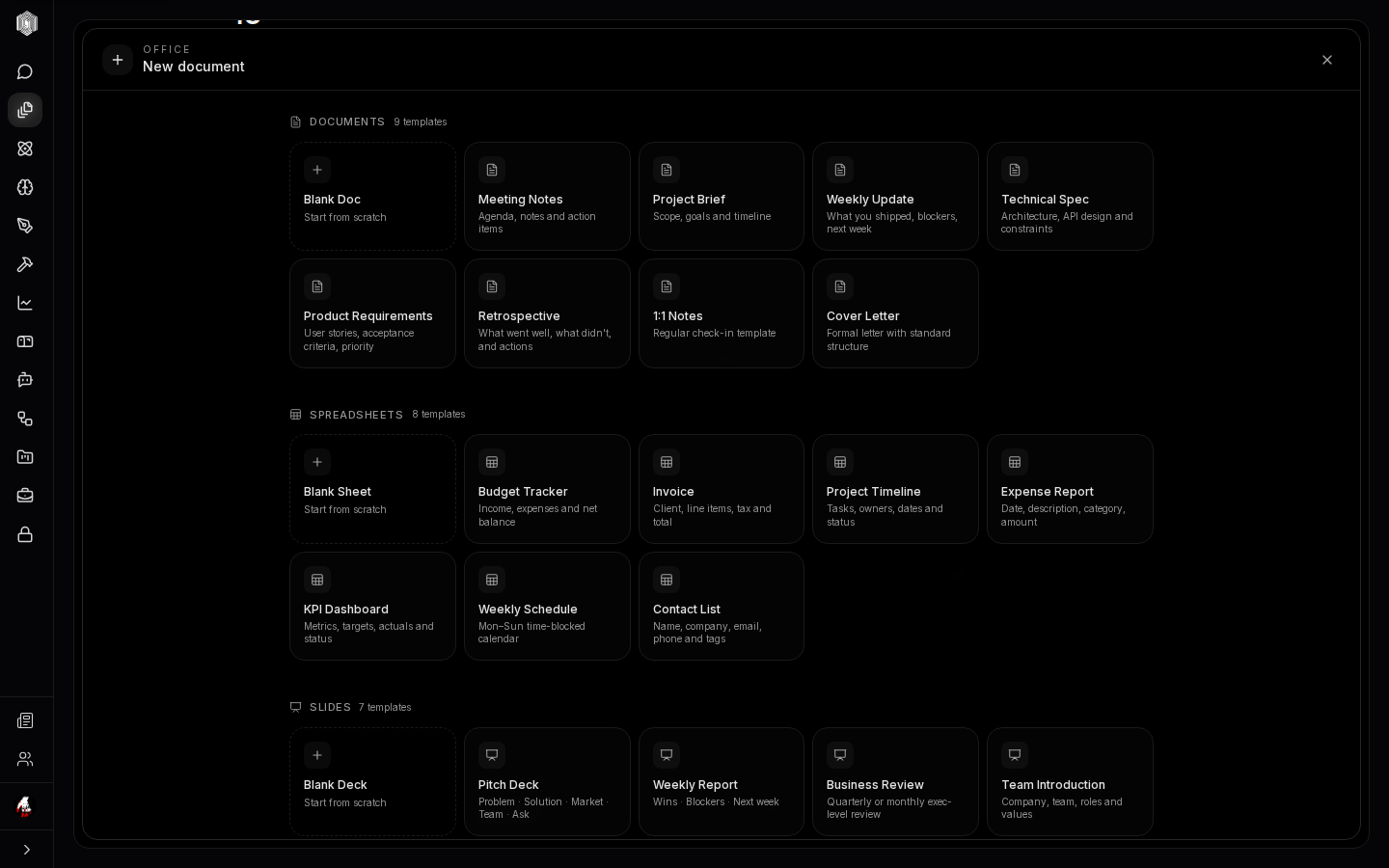
The New document flow opens the template gallery: every format's starter shapes in one scroll — nine document templates (meeting notes, project brief, weekly update, technical spec, product requirements, retrospective, 1:1 notes, cover letter), eight spreadsheets (budget tracker, invoice, project timeline, expense report, KPI dashboard, weekly schedule, contact list), seven decks (pitch deck, weekly report, business review, team introduction), and more for boards and whiteboards. Each shows what it contains before it becomes yours; Blank is always the first card, and is a real blank, not a template with opinions.
Templates carry structure, never content — a meeting-notes template has headings for attendees and decisions, not fake attendees. Picking one creates a real document you own from that moment: rename it, gut it, restructure it; the template was only the starting scaffold.
The knowledge graph
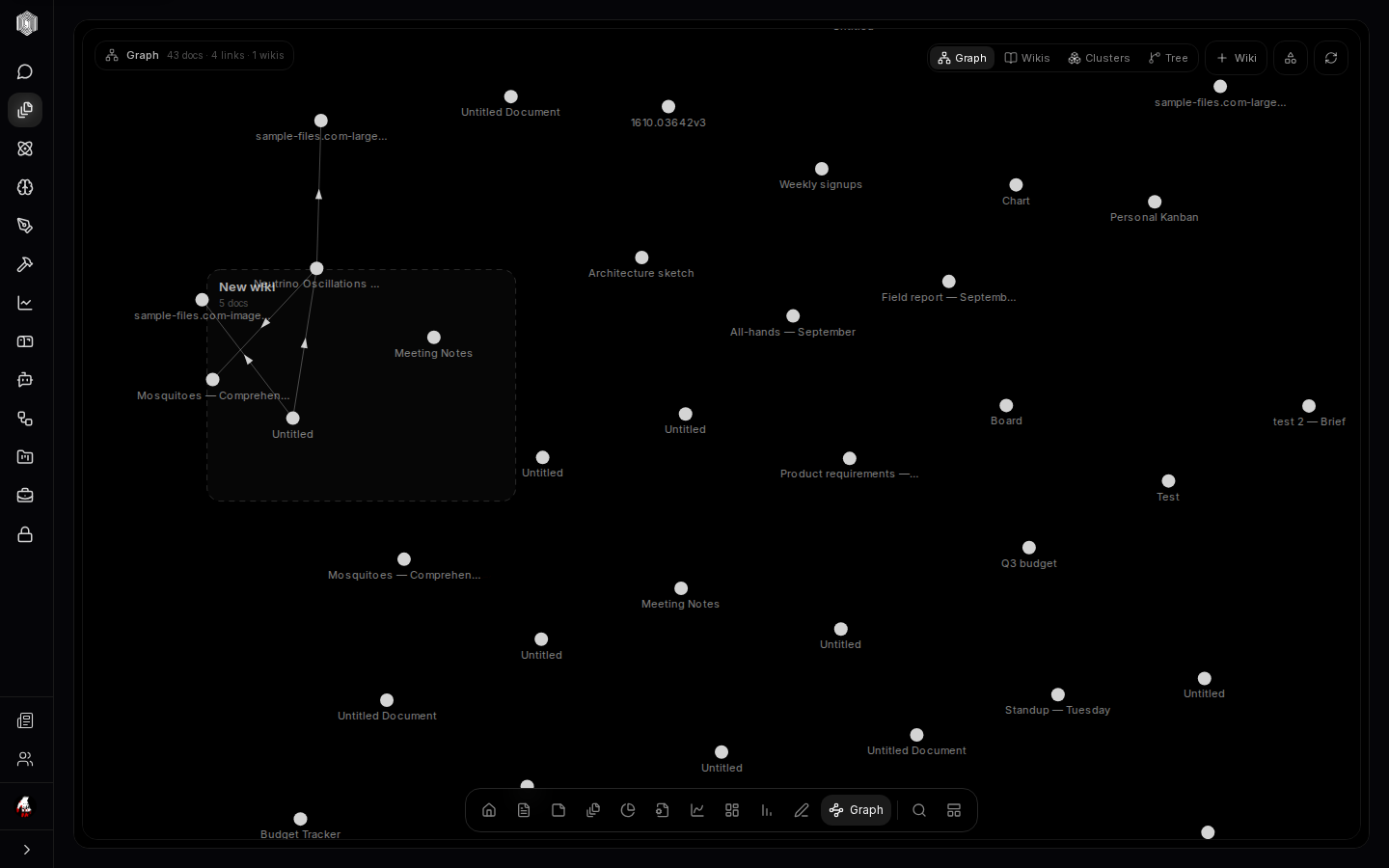
The Graph tab draws the whole library as a map: every document a node, references and links between them as edges, with the count of docs, links, and wikis in the header. Four modes read the map differently: the Graph itself; Wikis, which group documents into curated reading collections; Clusters, which group them automatically by how they reference each other — often surfacing a project structure you had not noticed; and Tree, the same library as a hierarchy. Clicking a node opens the document; a + Wiki action starts a new curated group.
The graph is also the desk's memory-jogger. "I wrote something about pricing in March" is a cluster-shaped question: open Clusters, find the pricing group, and the document is there — no filename guessing required. For anyone who remembers ideas by their neighbours rather than by title, the graph is the difference between a library and an archive.
Folders and finding
Documents can be filed into folders, shown in the rail as a row of chips — deliberately flat, so filing never becomes a second job. All and Unfiled are built-in views, any folder can be renamed or deleted from the rail, and read-only viewers can browse but not rearrange. A document's folder rides with it: filtered into the tab lists, visible on the desk, gone nowhere when you stop filing.
Search stays global regardless of folders: the Find a document action (the magnifier in any header, or ⌘K from anywhere in the app) searches every format at once by title, so a spreadsheet named "Q3 budget" surfaces next to the board named "Launch tasks" without any filing discipline at all. The two systems compose — folders for storage, search for retrieval — and neither depends on the other. Filter boxes on every tab narrow a single list as you type, which covers the small in-between case: one tab, too many rows, one known word.
Sharing a document
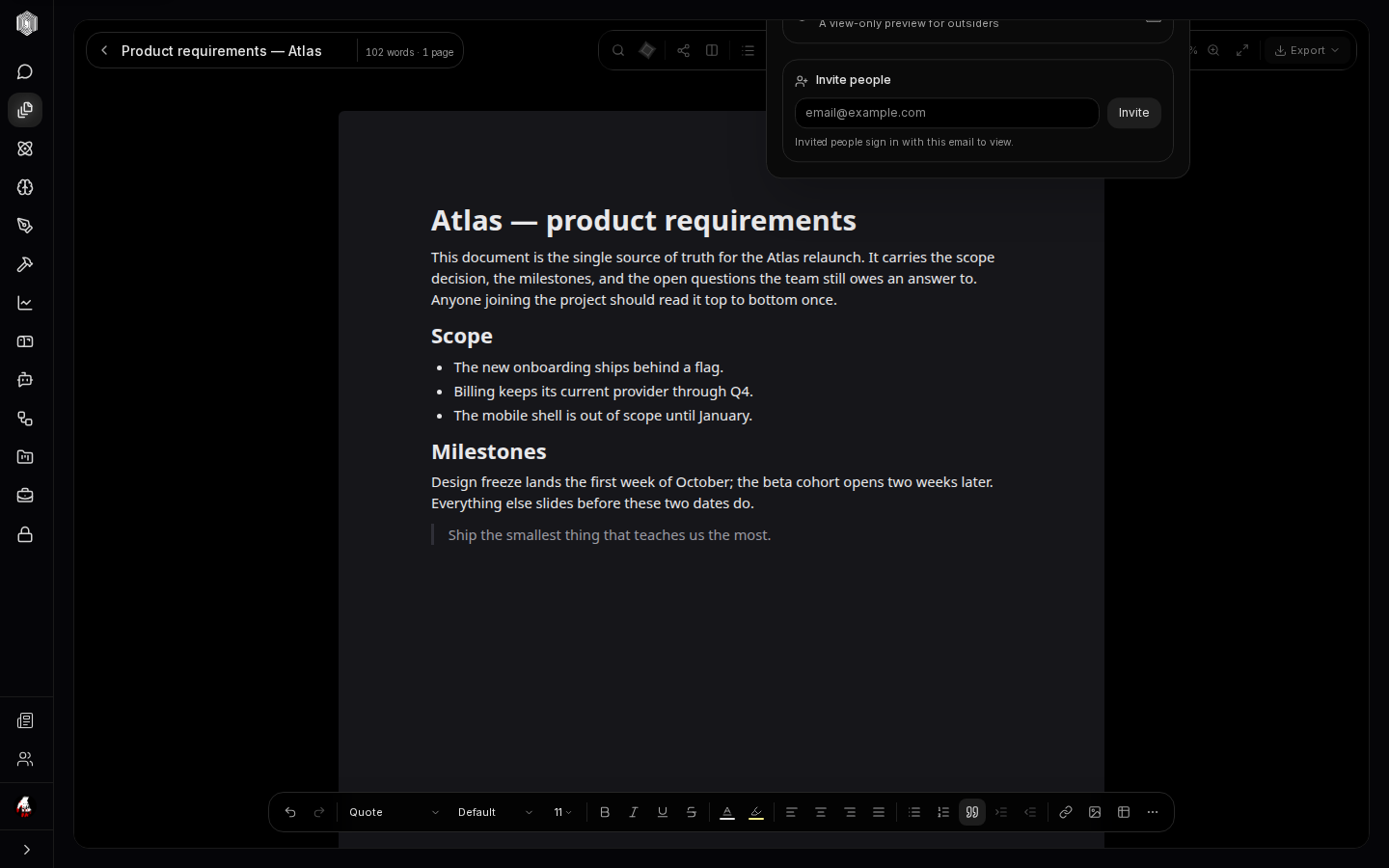
The Share button on any document opens its access panel. Two doors, separately controllable. Invite people grants access by email — each invitee signs in with that email to view; the list shows who has access and can revoke per person. Anyone with the link creates a view-only preview at a public address, with an optional expiry date and an optional password, and revoke kills the link outright whenever you want it dead.
Sharing is per document, never per desk: one proposal can go out while everything else stays private, and every shared access is read-only — viewing never becomes editing without you saying so. Combined with track changes and comments (page two), a document can move from private draft to reviewed to shared-with-the-world without ever leaving the editor.