The notebook
The notebook is the reason the rest of the desk exists. It is a stack of pages that behave like paper — you just write — and like software at the same time: anything on a page can be a live chart, a runnable code cell, a cited source, or a recording. This page covers the writing surface end to end: how pages work, what a page can hold, the AI that can help, and the tools for finding your way back to something six weeks later.
Pages and page views
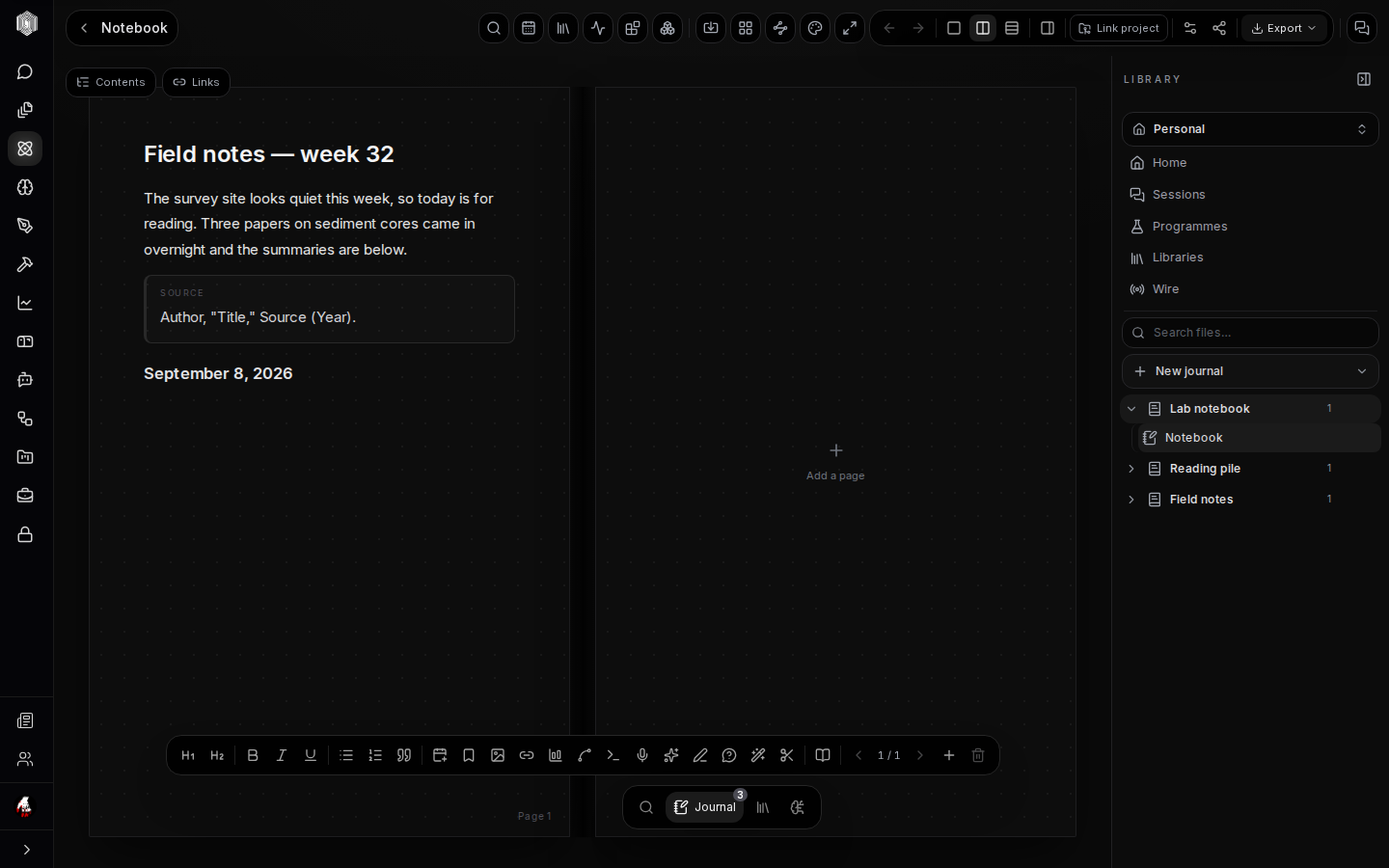
A notebook is a stack of pages. The first page exists as soon as the journal does; the + Add a page control in the spine adds more, and the dock's page controls step forward and back or remove the page you are on (with a confirm, because a page is real work). The Contents tab at the top of the desk lists every page in the notebook as a table of contents built from your headings — click an entry to jump there — and the Links tab lists everything this notebook references or is referenced by.
Pages present themselves three ways. Double page shows a spread, like an open book, which is the calm default for reading your own work. Single page shows one page at a time, which suits narrow windows. Scroll view unpins the pages entirely and lets the whole notebook run vertically, which is the fastest way to read a long notebook start to finish. The view controls live in the header; on phones the spread folds to single pages automatically.
The writing dock
The dock is the strip of tools that rides along at the bottom of the page while you write. Its left end is formatting: headings, bold, italic, underline, ordered and bulleted lists, and quotes, all applied to the current selection like any editor you have used. The dock watches the page as you type, so its buttons light up to reflect where the caret is — if you are inside a quote, the quote button knows.
Its right end is where the notebook stops being plain paper: buttons for a source card, a file reference, a chart, the graphing calculator, a code cell, and an audio recording, then the AI actions and a re-render pass described below. Then come the page controls — previous, next, the page counter, add, and remove. The dock can be ignored completely: every one of its jobs is also reachable by keyboard or by the slash menu, so pick whichever hand you think with.
The insert menu
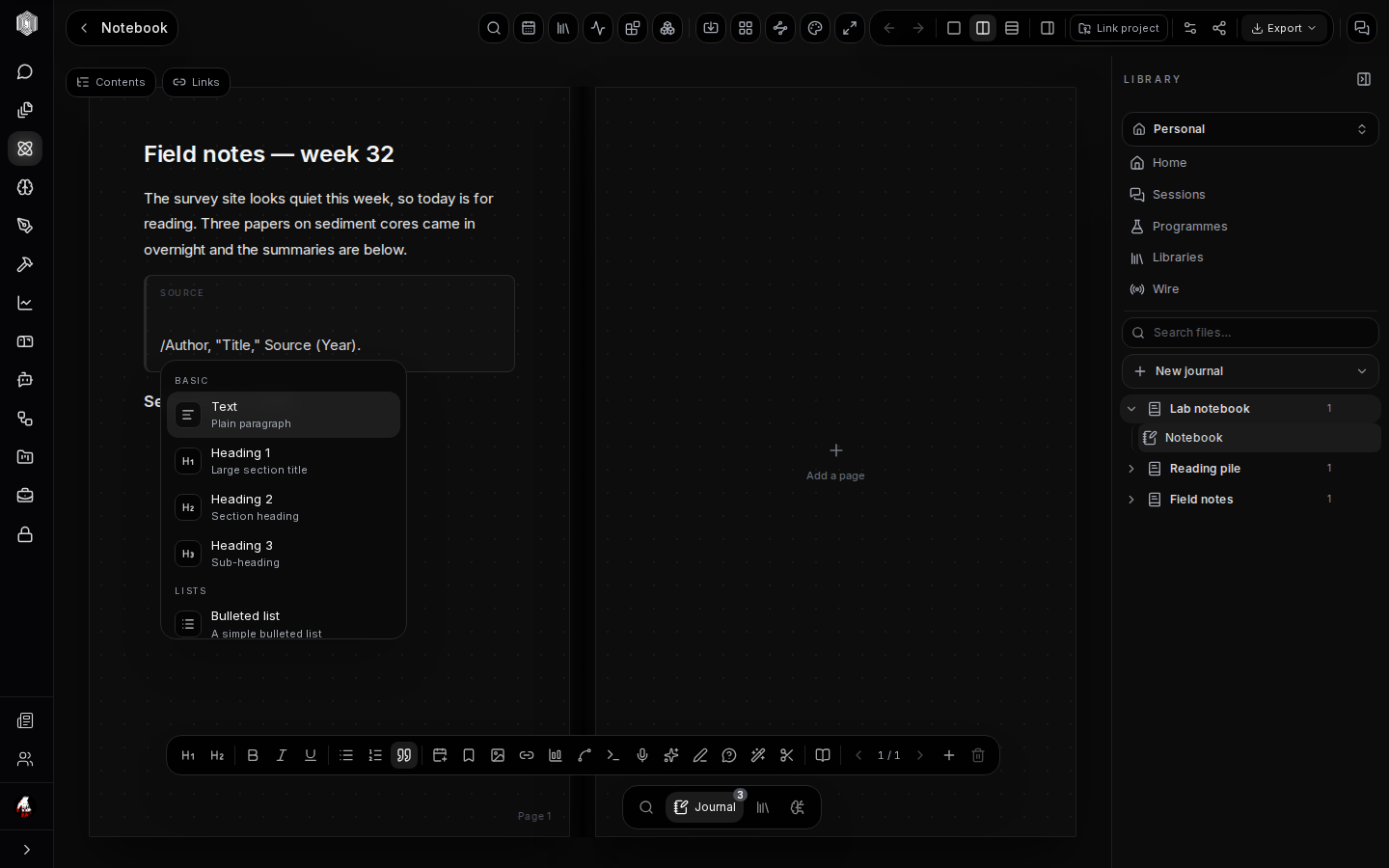
Typing / on an empty line opens the insert menu — a searchable list of everything a
page can hold, grouped into Basics (text and headings, lists, quotes, to-do lists), Research
(source cards, file references, dated entries, math blocks, charts, the graphing calculator,
code cells, artifacts), and Media (images, audio, calendar events, tables, dividers, code
blocks). Type to filter — /chart narrows the list to the chart — then Enter or click to
insert.
The menu is the discoverable face of the page; the dock is the fast one. Both do the same job, and neither is mandatory: a page of plain paragraphs and headings is a perfectly good notebook. The rest of this section walks the things the menu can add, in the order they tend to earn their place in real work.
What a page can hold
Source cards are the notebook's citations: a small card with the source's author, title, and year, which the AI actions and the references list can read and build on. A card you paste text under keeps the quote tied to where it came from, which is the whole discipline of research in one habit. File references link a page to another file on the desk — another journal's notebook, a PDF, a chart — so a page can point at evidence without copying it.
Charts are small editable bar, line, or pie charts whose numbers you type into a grid; the graphing calculator plots functions you write, pan and zoom like a proper plotter. Code cells run Python, JavaScript, or Bash right on the page and show their output beneath — a quick calculation or a data cleanup never has to leave the notebook. Artifacts embed live HTML, React, SVG, or Mermaid diagrams that you write yourself and run in place. Rounding it out: math blocks render LaTeX, images can be uploaded or generated, audio records from your microphone or picks a clip (with a transcript), and calendar events reference an event from the space's calendar without leaving the page.
Citing your sources
Citation is built into the writing, not bolted on after. The source card is the unit: a cited block that says where a claim came from. Cards you insert are yours to fill in; cards that arrive from elsewhere — a paper added from the arXiv browser, a wire story clipped as a source — arrive already filled, with the publication and date attached. Every source card on every page feeds the journal's references list and the AI actions that read "your sources."
The notebook also has a plain-text references item kind — a journal can hold a page whose whole job is the bibliography — and the arXiv browser (page five of this guide) adds to it without any copy-pasting. The habit the desk encourages is small: when you write something you did not know yesterday, put a source card under it. Future-you, or a colleague reading the shared space, can then trace every claim to its origin.
AI on the page
The dock's AI buttons act on the page you are looking at. Research AI summarizes, finds related work, and suggests citations for the current page or selection. Continue writing drafts forward from where your caret sits, deliberately grounded in the sources the journal has collected — it continues your notes in your direction rather than inventing a general essay. Answer from sources takes a question you have selected or typed and is instructed to answer only from the journal's collected sources and to say when they don't cover the question, which makes it a search tool that reads your desk before it speaks.
Two behaviours keep the AI honest on this surface. First, grounded actions say what they used; if the journal has no sources yet, a grounded answer tells you so rather than reaching for the open internet. Second, Re-render is the opposite of AI — a deterministic pass that applies markdown and math rendering to anything you pasted in plain, so pasted notes come out typeset exactly as typed.
The journal assistant
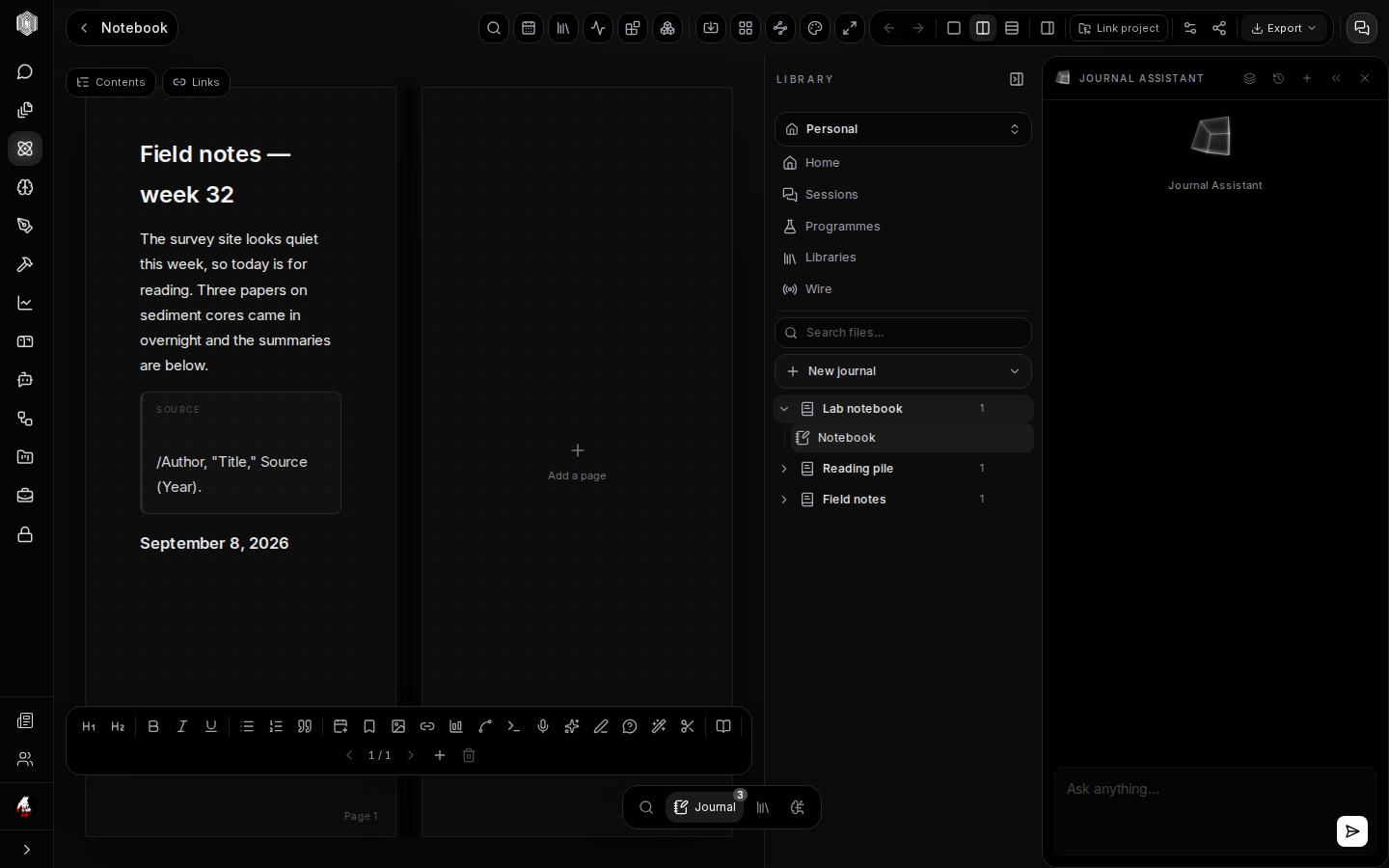
The speech-bubbles icon in the journal header opens the assistant — a chat panel docked beside the page that can see the journal you have open and talk about it. This is the place for the questions that are about the work rather than in it: "summarise what changed in this notebook this week," "which of my sources mention sediment cores," "draft an outline for a report from these pages." It shares the same grounding rules as the in-page AI: your journal first, honesty about what it did not find.
The assistant is a conversation, so follow-ups keep their context — you can iterate on a draft outline without restating the material. Its transcript belongs to the session, not the page, which keeps the notebook itself clean: the thinking can happen in the panel while the paper keeps only what you choose to put there. Closing the panel never loses your place on the page.
Finding things again
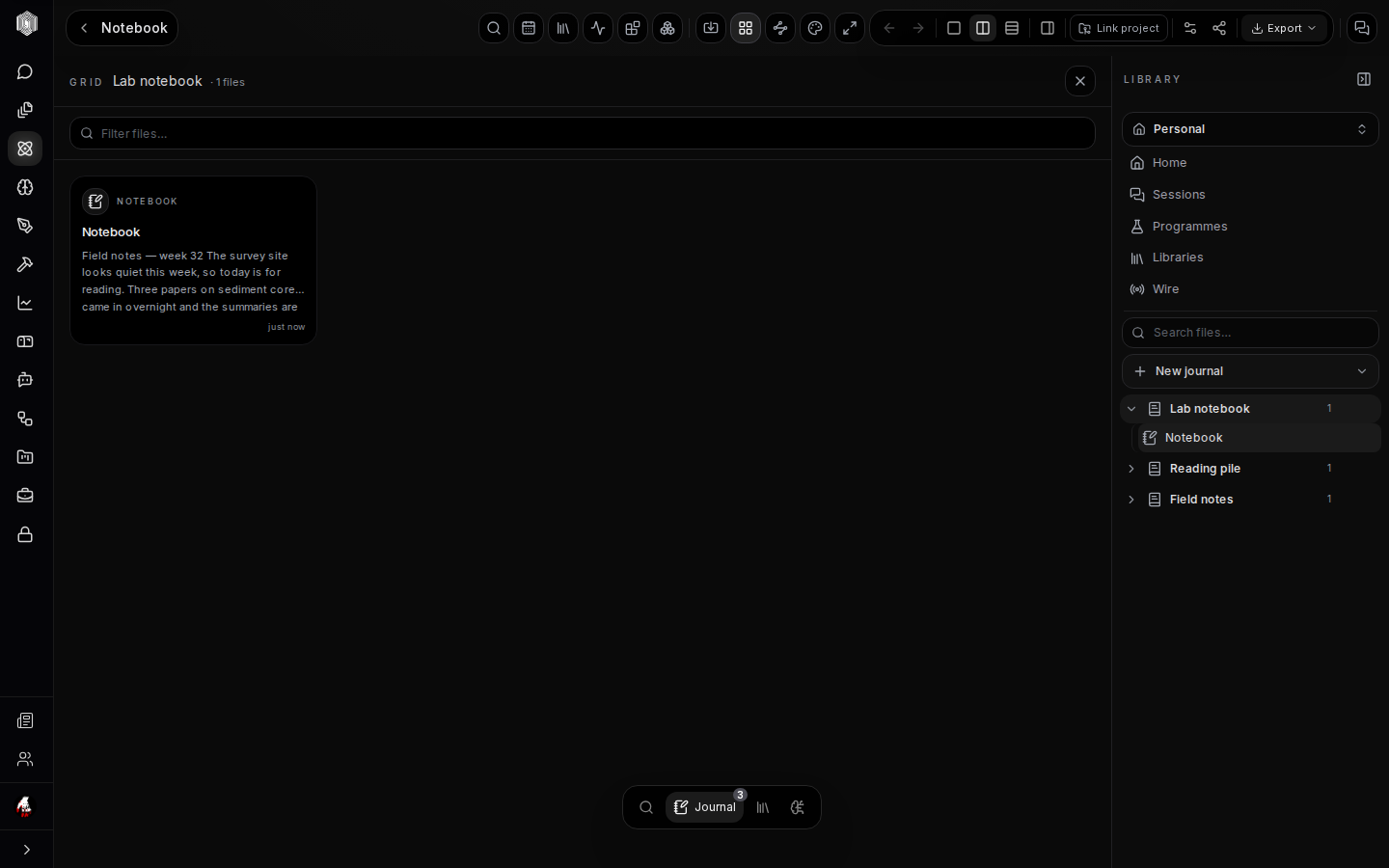
Three tools cover "where did I write that." Grid view (the grid icon in the header) spreads every file in the journal as cards on one screen, with a filter box — the fastest way to see a whole project's shape, and cards are clickable straight through to the file. Search this space (the magnifier) indexes the actual words: notebook body text, LaTeX, references, and session transcripts, and offers Ask across this space on the same query, which answers from the material instead of merely listing it. Search is scoped to the space you are in — Personal by default — so results stay relevant.
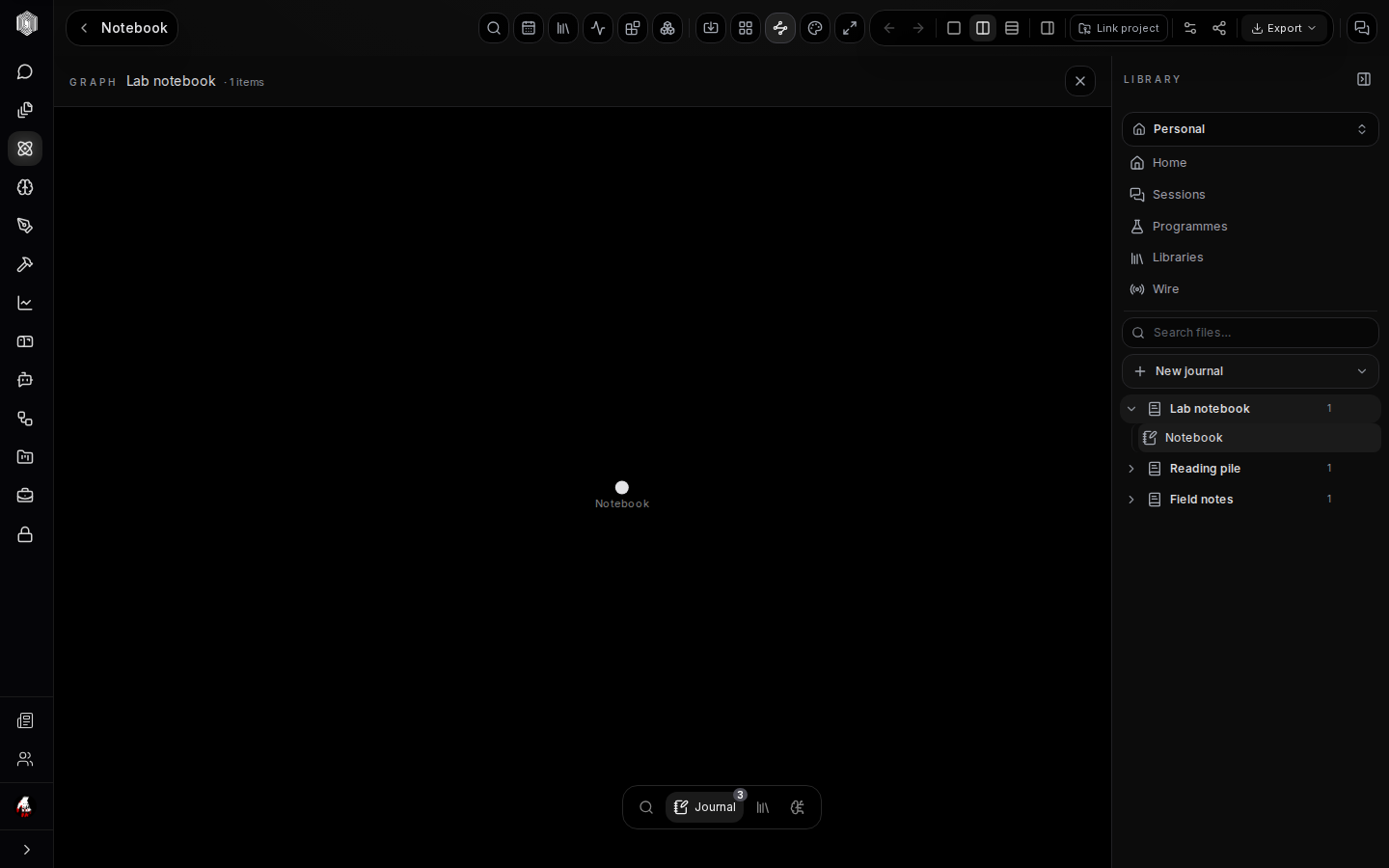
The graph (the waypoints icon) draws the journal as a map: every file a node, every reference between files an edge. A young journal is one dot; as your pages begin citing each other and referencing shared sources, the graph shows the structure you have actually built, which is often not the structure you assumed. Clicking a node opens the file. Between them — grid for inventory, search for wording, graph for shape — a desk of any size stays walkable.
Getting work out
The Export menu in the journal header has four doors. Print this notebook puts the current notebook through print, for paper or a PDF. Journal report — Print / PDF renders the whole journal, every item, as a single printable report. Journal report — HTML makes a self-contained web page of the journal you can archive or hand to someone who will not open the app. And Export .journal writes a file the journal format can re-import whole — every item, page, and reference — which is the backup you want before a big reorganisation, and the way to move a project between machines without any server in the middle.
Sharing without exporting lives on the share icon, and it is page five's territory, along with the calendar, the wire, and the rest of the smaller tools.