The document editor
The document editor is Office's centre of gravity — a word processor with real page layout, the collaboration tools you would expect, and an AI that works on the draft with you. This page walks it end to end: writing and formatting, the page itself, reviewing with other people, and the many doors out (print, export, Print Studio).
Writing and the toolbar
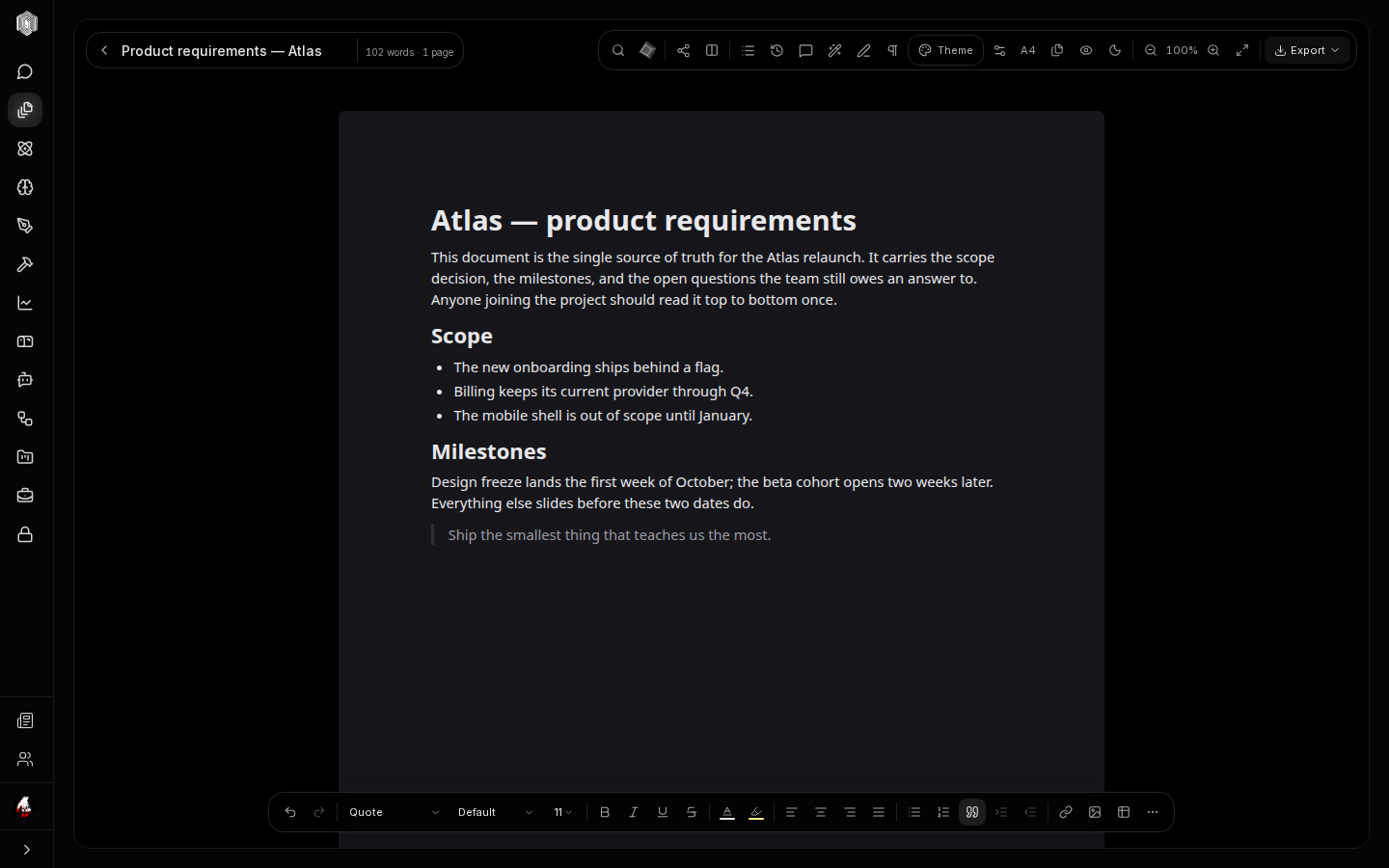
Open a document and you get a page at true paper proportions, a word count and page count in the header, and two layers of formatting. The top toolbar carries the document-level controls: search, share, focus mode, comments, track changes, page setup, a theme button that re-dresses the page, zoom, and the Export menu. The bottom dock carries text formatting: undo and redo, paragraph style, text style and size, bold, italic, underline, strikethrough, text and highlight colour, the four alignments, ordered and bulleted lists, to-do lists, indentation, links, images, and tables.
Formatting behaves like every editor you have used — select text, press the button, done — with keyboard shortcuts where they belong (⌘B, ⌘I, ⌘U, ⌘Z). The paragraph style menu is the fast way to structure: heading levels, quote, and code. For long documents, an outline menu built from your headings jumps between sections, and find-and-replace handles the renames a long draft always needs.
The page itself
The page setup dialog (the A4 button) controls the physical page: paper size, margins, and the header and footer. Headers and footers can carry page numbers, so a printed document comes out looking like a document rather than a screenshot. The theme button re-dresses the editor — page tone, fonts — without touching your text, which makes long writing sessions easier on the eyes and gives the document a consistent look when shared.
Focus mode clears every distraction: chrome, docks, sidebars — gone, full screen, just the page. An unobtrusive exit button appears in the corner, and Esc leaves. Together with zoom (which scales the whole page, not just text), this is the closest the desk gets to paper: a full-screen cream page at 125% is a genuinely pleasant place to write.
Comments and review
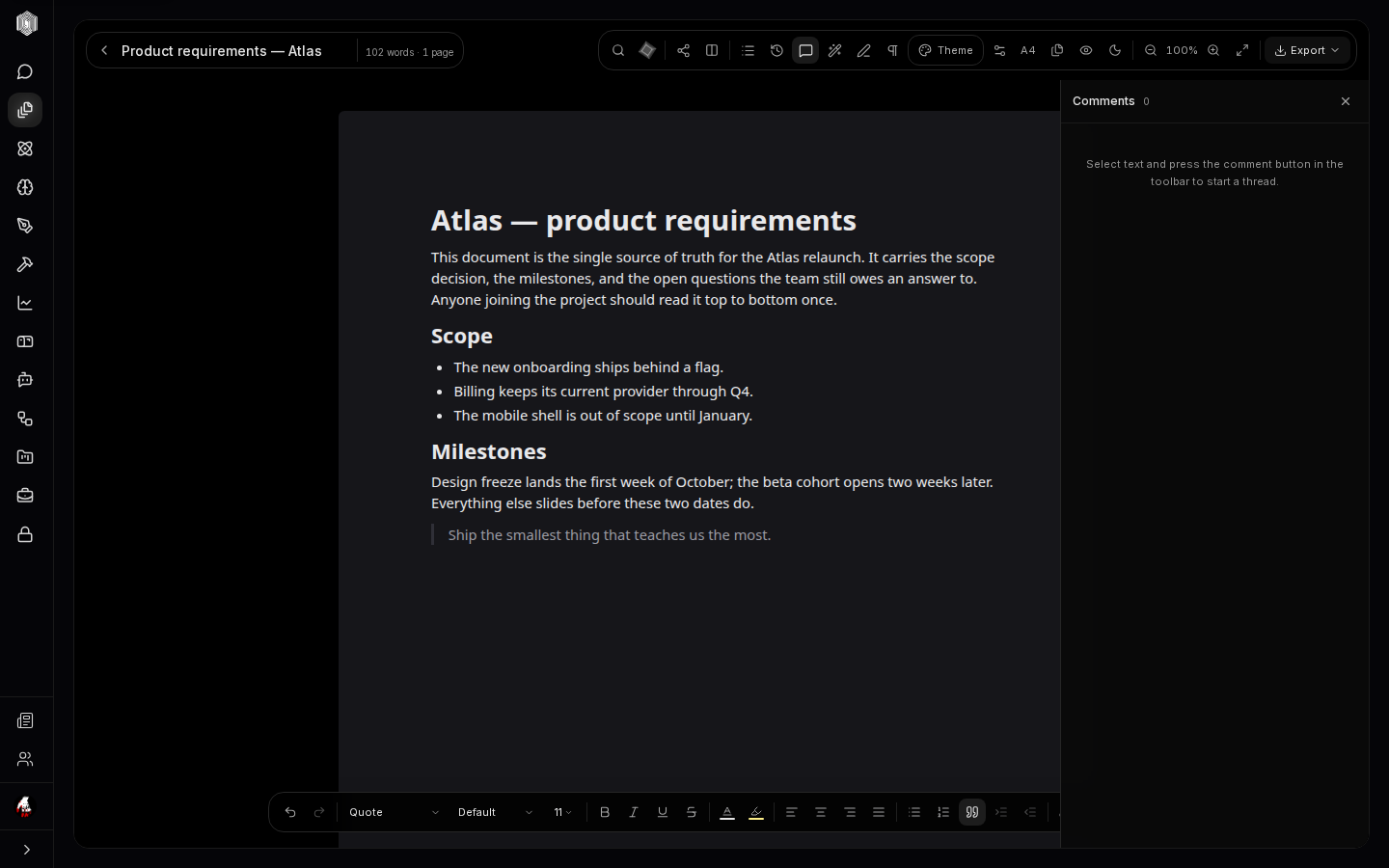
Collaboration lives in two tools. Comments (the speech bubble) opens a side panel where you can leave comment threads anchored to text: select any text, press the comment button, and a thread anchors to that selection. Threads stay with the text — open the panel and every conversation in the document is one list, with the anchor visible in place. It is the review loop for "why is this paragraph here" without switching to chat.
Track changes is the heavier hammer: turn it on and edits are recorded as suggestions — tracked changes are marked in the text — and nothing becomes final until someone presses Accept or Reject. For a document passing between a writer and an editor, or a policy circulating for sign-off, this is the difference between "I think you changed this" and a draft where each proposed change is marked and waits for Accept or Reject.
Version history
In version history, browsable from the document header, snapshots are taken as you work and before AI edits, kept on this device, each showing when it was taken and whether you or an agent made it, and any past version can be opened read-only to compare against the present — or restored if the last hour of edits was a mistake. Versions make the whole desk braver: rename the sections, restructure the argument, and the old draft is a click away rather than gone.
History pairs well with the journal: a document in Office can be referenced from a research journal (the journal shows a backlink chip when a journal page points at it), so the record of why a document says what it says is one click from the document itself.
The AI on your draft
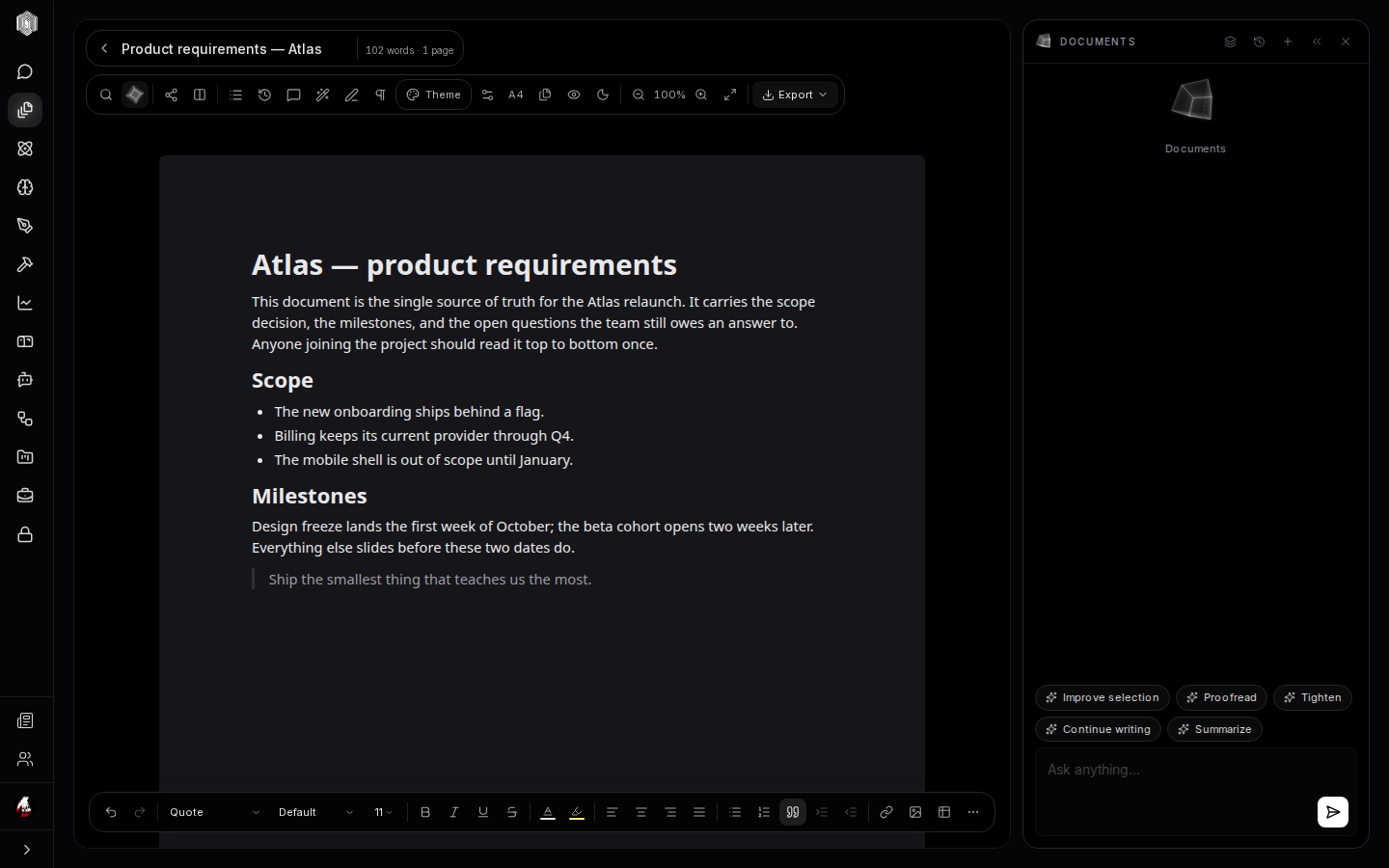
The cube in the header opens an AI sidebar docked beside the page, pre-loaded with quick actions tuned to the draft: Improve selection rewrites whatever text you have highlighted, Proofread fixes grammar and spelling, Tighten cuts a paragraph to its spine, Continue writing drafts forward in your voice, and Summarize boils the document down. The sidebar also takes plain questions about the document — "what did I promise the client in section two?"
Two habits make the AI genuinely useful rather than a novelty. First, work in small pieces: select a paragraph and improve that, rather than asking for the whole document to be "better" — the edits stay reviewable and your voice stays yours. Second, accept nothing you have not read: the AI edits the document, but the document has your name on it.
Printing, exporting, and Print Studio
The Export menu has the doors. Print puts the formatted page — headers, footers, page numbers — through print or to PDF. Export .docx writes a genuine Word file, which is the hand-off for anyone outside the platform; open it in Word or Google Docs and the headings, lists, and tables survive the trip. Those two cover most audiences: on paper for the meeting, in Word for the collaborator who lives there.
The third door is the interesting one: documents can be sent to Print Studio, the
Publications editor (page five), where the page becomes one page of a larger assembled PDF
you can annotate, stamp, and rearrange. That is the path when a document stops being alone —
a requirements doc plus a budget sheet plus an annotated competitor PDF becoming one
review pack. Between print, .docx, and Print Studio, a document reaches any audience:
on the platform, in Word, on paper, or bound into something bigger.