Journal — start here
The Journal is your research desk. It is where reading turns into notes, notes turn into arguments, and arguments turn into something you can hand to someone else. This page gives you the shape of the whole thing in one read: what a journal is, where your work lives, and the shortest path to a first page. Everything here links out to a deeper page, so you can stop after this and already be productive, or keep going and know the whole desk.
What the Journal is
A journal is a container for research work. The thing you will use most is the notebook — a stack of pages you write on, the way you would write in a paper notebook, except each page can also hold live charts, runnable code cells, cited sources, audio recordings, and math that renders as you type. Around the notebook, a journal can hold other kinds of files too: documents, spreadsheets, slides, whiteboards, PDFs, and a references list. Everything in one journal belongs together, the way everything in one paper notebook belongs to one project.
The word "research" is doing real work here. The Journal is built for writing that cites: every page can reference the papers you read, the chats you had, and the news you clipped, and those references stay clickable. If you have used the Chat section for research, think of the Journal as the place where the useful parts of those conversations settle down and become yours — edited, organised, and connected to their sources.
Where to find it
Open the Research section and choose Journal in the rail — that is the whole trick. The Journal used to live at its own address, and old links still work: they land you in the same place, inside Research, with nothing lost. You can also reach it from the section dashboard that appears when you first open Research.
Because the Journal is part of Research, it shares the section's habits: the same dark desk, the same right-hand rail, and the same ⌘K-style command surfaces you already know. On a phone the layout folds up sensibly — the rail becomes a slide-over menu behind a hamburger button, and the notebook switches to one page at a time so you are never pinching to read.
What lives where
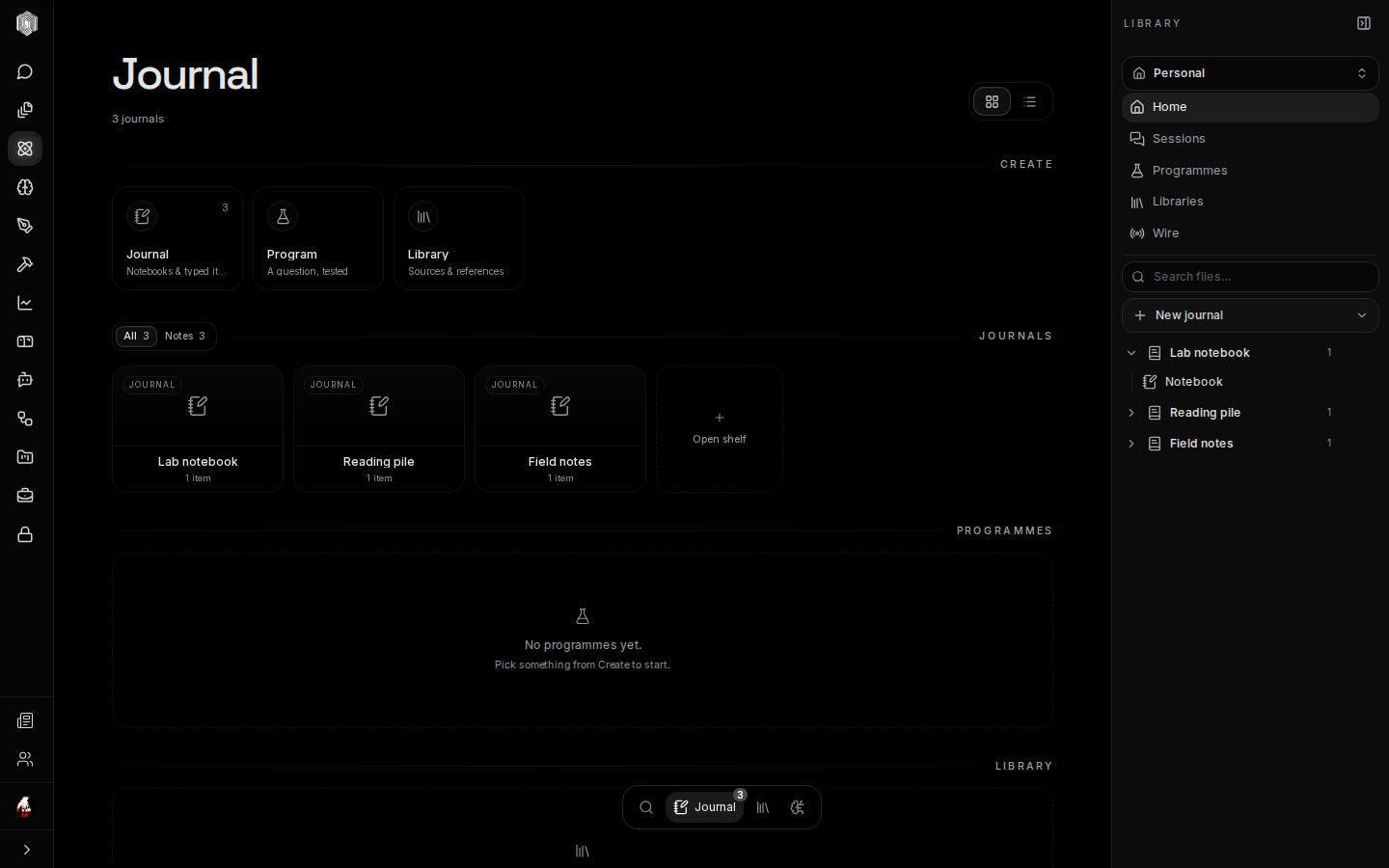
The desk has three collections. Journals are the notebooks themselves — most people keep one per project. Programmes are longer-running research questions: a hypothesis you are testing over weeks, with evidence accumulating against it. Libraries are curated reading piles — collections of sources, snippets, and files you want in one place. The three are deliberately separate: a journal is yours to write in, a programme is a question you are pursuing, and a library is material you collect.
Beside those three there are two workspaces that feed them. Sessions are research chats that can search, reason, and cite, without being attached to any journal — and when a chat turns out to be useful, you can promote it into a journal with one click. The Wire is a live news desk: read the news, and clip a story straight into whichever journal you choose. Both live in the right-hand rail, one click away, so the things you read are never far from the thing you are writing.
Your first journal
From the dashboard, click the Journal tile in the Create row. The desk magnifies the tile and offers New Journal — click it and you are immediately inside a fresh journal with a notebook ready to write on. That is the whole ceremony. If you would rather start from structure, the Templates row on the same dashboard offers a lab notebook, a literature review, and an experiment log — each one a journal whose pages are already titled for the job, so you fill in content instead of inventing headings.
Rename the journal from its Settings dialog (the gear in the journal's header): the title you give it appears on the cover and on the bookshelf. You can also add a subtitle, an author line, and a date label, which is worth doing if the journal will ever be shared — a cover that says what a notebook is saves the next person ten minutes.
Private by default
Everything you write lives on your device first. Journals are local until you deliberately put them in a space — a shared room where journals, libraries, and calendars sync to the server and become visible to the space's members. If you never create or join a space, your journals stay on this device — except what you send through our servers: an AI action (that page's text, to our model provider), a file or link you import, a .docx you attach (stored in Office), and a journal you share by link or invite (a snapshot of its content is published to our servers for the people you share it with). They are still there after a refresh, because they were saved as you typed.
For anything sensitive there is a second lock, a PIN. A 6-digit PIN encrypts a Personal journal's pages with a key only your PIN can make (PINs are not available on journals in a space). If you forget the PIN, the pages cannot be recovered. After you unlock it, the key is kept on this device for the window you choose — 1, 6 or 24 hours — and the next time the journal opens after that, it is locked again. You set and remove the PIN from the same Settings dialog where you rename the journal.
When you are ready for more
The rest of this guide walks the desk in order. The desk page covers everything around the notebook — the dashboard, the bookshelf, covers and settings, themes, and focus mode. The notebook page is the long one: pages and page views, the writing dock, everything a page can hold, the AI that can help, and the three tools for finding your way back to something six weeks later. The fourth page introduces the workspaces that feed a journal — sessions, programmes, and libraries — and the fifth handles the smaller tools: the wire, the calendar, arXiv search, your activity, ToolKits, and sharing.
You do not need any of it to start writing. Open a journal, click the page, and type; every other feature on the desk is designed to stay out of sight until the work asks for it. When it does — the first citation, the first shared deadline, the first search for a half-remembered sentence — the tool for the job is already one click away, and the page you wrote tonight is already saved.